Best Free Notion Templates for Solopreneur Productivity
Disclosure: We may earn a commission when you purchase through links on this site, at no extra cost to you. How we make money.
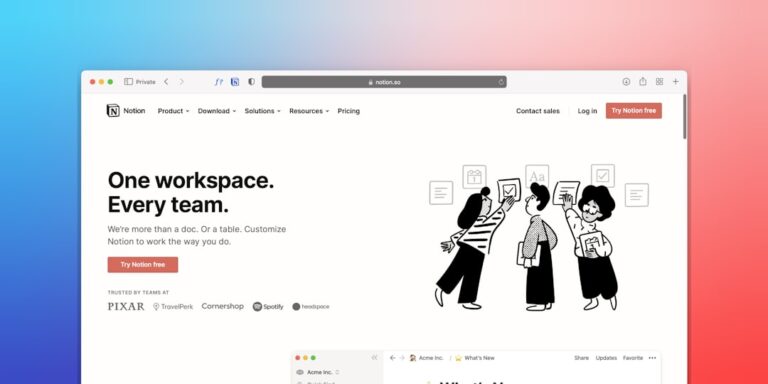
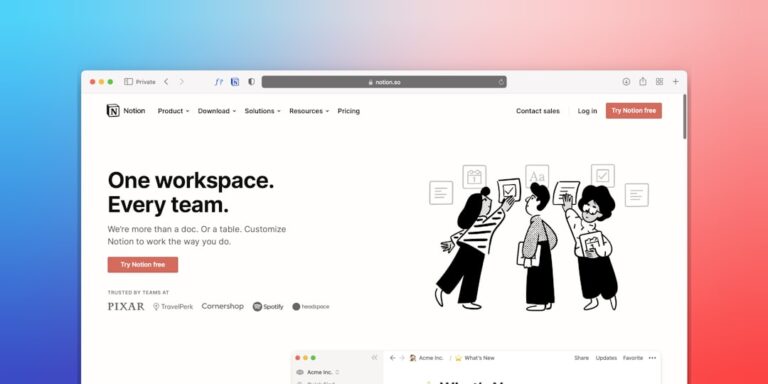
If you’ve ever opened five different tabs to find one piece of client information, you already know the problem. Solopreneurs tend to accumulate tools: a spreadsheet for client tracking, a separate doc for project notes, a calendar for deadlines, a sticky note for the thing you keep forgetting. The system works until it doesn’t — and then something falls through the cracks. Notion solves this by letting you build everything in one place, and the best part is that you don’t have to build from scratch. There are dozens of well-designed free templates that give you a working system on day one. This guide breaks down the best ones by category, explains what each template does well, and shows you how to connect them into a single solopreneur operating system.
Why Notion Works So Well for Solopreneurs
Most productivity tools are built for teams. They assume you have a manager, a direct report, or at least a coworker to assign tasks to. Notion is different because it’s a blank canvas — you shape it to your actual workflow rather than adapting your workflow to the tool’s assumptions.
For solopreneurs specifically, Notion’s database system is the key feature. A single database can be viewed as a table, a kanban board, a calendar, or a gallery — depending on what you need to see at any given moment. Your client list becomes a project tracker becomes a billing dashboard, all from the same data. That flexibility is what lets a single Notion workspace replace a CRM, a project management tool, and a note-taking app simultaneously.
The free plan is genuinely functional for most solopreneurs — unlimited pages and blocks, collaborative access for up to 10 guests, and full access to the template gallery. You only hit the ceiling if you need advanced permissions or large file uploads.
The 4 Templates Every Solopreneur Actually Needs
Not all templates are worth your time. Many Notion templates are beautiful but impractical — they require too much manual upkeep or were designed for a different workflow entirely. The four categories below represent the core systems that keep a solopreneur operation running smoothly.
1. Client Management Template
A client management template is the closest Notion gets to a lightweight CRM. A good one tracks:
- Client name and contact info
- Project or service type
- Status (prospect, active, complete, paused)
- Key dates (start date, renewal, last contact)
- Notes and files linked directly to each client record
The best free options in Notion’s template gallery include the “CRM” template from Notion itself and several community-built alternatives that add invoice tracking and referral sources. Look for one with a linked “Projects” database so each client record connects directly to their active work.
2. Project Tracker Template
A project tracker keeps your deliverables visible without requiring you to hold everything in your head. The key properties in a solid project tracking template:
- Project name linked to the client database
- Status (not started, in progress, in review, done)
- Priority (high, medium, low)
- Due date — with a calendar view so you can see your week at a glance
- Subtasks as a nested checklist or separate linked database
Notion’s built-in “Project & Tasks” template is one of the best starting points available. It uses a linked tasks database with filtered views for each project, which means you can see all tasks across every project in one place or drill into a single project — same data, different lens.
3. Content Planning Template
If content creation is any part of your business — blog posts, social media, newsletters, YouTube videos — a dedicated content calendar template saves hours of coordination overhead every week.
A good content planning template includes:
- Content type (blog, newsletter, LinkedIn, etc.)
- Status (idea, drafting, scheduled, published)
- Publish date (calendar view is essential here)
- Target keyword or topic
- Notes or brief linked to each content item
Look for community templates that include a “Content Ideas” intake section — a separate filtered view for raw ideas that haven’t been scheduled yet. This keeps your main calendar clean while giving you a place to dump ideas in real time.
4. Weekly Review Template
The weekly review is the glue that holds every other system together. Without a regular review habit, even the best Notion setup becomes cluttered and unreliable within a few weeks.
A solid weekly review template prompts you to:
- Review open projects and update statuses
- Identify the three most important outcomes for the coming week
- Capture loose items that didn’t get logged anywhere
- Check your content calendar and upcoming client deadlines
- Note one thing that worked and one thing to improve
Notion’s free template gallery has several strong weekly review templates. The best ones link directly to your project and task databases so the review pulls in live data rather than requiring you to manually copy information across.
How These Templates Compare to Dedicated Apps
| System | Notion Template | Dedicated Tool Alternative | Cost Difference |
|---|---|---|---|
| Client management | Notion CRM template | HubSpot, Pipedrive | Save $20–$50/mo |
| Project tracking | Projects & Tasks template | ClickUp, Monday.com, Asana | Save $8–$20/mo |
| Content planning | Content calendar template | CoSchedule, Trello | Save $10–$29/mo |
| Weekly planning | Weekly review template | Sunsama, Reclaim | Save $16–$20/mo |
Running all four of these on dedicated tools can easily cost $50–$100/month. Notion’s free plan covers all of them. Even if you upgrade to Notion Plus at $10/month for unlimited file uploads and version history, you’re still ahead.
Where to Find the Best Free Notion Templates
- Notion’s built-in template gallery — accessible from any new page. Filter by “Personal,” “Freelance,” or “Small Business.” These are vetted and regularly updated.
- Notion.so/templates — the full online gallery with community submissions. Search by use case for the most relevant results.
- Gumroad and Etsy — many creators sell premium Notion templates here, but a good chunk offer free versions or freemium tiers. Search “Notion template solopreneur” to find curated packs.
- Reddit (r/Notion) — community members regularly share free templates with real-world feedback on what actually works day-to-day.
Connecting Your Templates Into One Operating System
Individual templates are useful. A connected system is transformative. The goal is to link your four core databases — clients, projects, content, and weekly reviews — so that data flows between them automatically.
Here’s how the connections work in practice:
- Link projects to clients — each project record has a “Client” relation field pointing to your CRM database. Now every client page shows their active and past projects automatically.
- Link tasks to projects — each task lives inside a project. Your weekly review pulls in all open tasks grouped by project, so your planning session starts with full context.
- Link content to projects — if a content piece is part of a client deliverable, relate it to the project. If it’s for your own channels, it stands alone but still appears in the weekly review filter.
Once the databases are linked, you can build a Home Dashboard — a single Notion page that shows linked views from each database: upcoming deadlines, active clients, this week’s content, and your top three priorities. This becomes the one page you open every morning instead of five.
For solopreneurs who want to take the automation layer further, connecting Notion to Zapier or Make.com unlocks a second tier of capability: auto-creating project records when a new client signs, syncing tasks to a Calendly booking confirmation, or pushing completed project statuses to an Airtable reporting database. These integrations transform your Notion workspace from a manual productivity system into a semi-automated business backend. You can explore specific setups in our guide to the best Zapier workflows for service solopreneurs.
When Notion Isn’t Enough
Notion is the right tool for most solopreneurs, but it has limits worth knowing about.
If you need advanced task management with time tracking, workload views, or built-in recurring tasks, ClickUp is worth a look — its free plan is more capable than Notion’s for pure task management. If your primary need is structured data with spreadsheet-like formulas and rollups, Airtable handles complex relational data more gracefully than Notion’s database system. And if you’re growing into a small team and need structured project timelines with resource management, Monday.com starts to make sense as a dedicated tool.
The honest answer is that most solopreneurs won’t hit Notion’s ceiling for at least a year or two of serious use. Start here, build the habit, and migrate only if you have a specific need that Notion genuinely can’t meet.
- The four essential Notion templates for solopreneurs are: client management, project tracking, content planning, and weekly reviews — each available free from Notion’s template gallery.
- Linking these four databases in Notion creates a connected operating system that replaces four to six separate apps and saves $50–$100/month in tool subscriptions.
- Build a Home Dashboard only after your databases have real data — two weeks of actual use will show you exactly what you need to see on that dashboard.
- Connecting Notion to Zapier or Make.com automates data entry across your system, turning a manual productivity hub into a semi-automated business backend.
- Start with one template per category and give it two weeks before adding more — template overload is the most common reason Notion setups fail.
Frequently Asked Questions
Are Notion templates really free, or do you need a paid plan?
Most Notion templates are completely free to duplicate and use on Notion’s free plan. You can access the full template gallery without paying anything. Some premium templates sold by third-party creators on Gumroad or Etsy require a purchase, but there are excellent free alternatives in every category. The only reason to upgrade to Notion Plus ($10/month) is for unlimited file uploads and version history — not for template access.
How long does it take to set up a Notion productivity system from scratch?
If you’re using pre-built templates, you can have a functional four-database system running in two to three hours. The first hour is duplicating and customizing the templates. The second hour is linking the databases and populating your existing clients and projects. The third hour (optional) is building the Home Dashboard. Don’t try to do it all in one day — set up one database at a time over the course of a week so you actually learn how each one works.
Can I use Notion on mobile?
Yes. Notion’s iOS and Android apps are solid and fully functional on the free plan. The mobile experience is best for capturing quick notes, checking task statuses, and reviewing your dashboard. Building or editing complex databases is easier on desktop, but day-to-day use on mobile works well. Many solopreneurs keep the Notion mobile app open alongside their calendar for quick reference throughout the day.
What’s the difference between Notion and Airtable for solopreneurs?
Notion and Airtable both use database-style structures, but they serve different strengths. Notion is better for mixing documents with databases — your project notes, client briefs, and SOPs live alongside your structured data. Airtable is better for pure relational data with complex formulas, rollups, and structured reporting. For most solopreneurs, Notion covers more ground. If your work is heavily data-driven (e.g., tracking hundreds of inventory items or complex financial models), Airtable may serve you better for those specific use cases.
Do I need Zapier to make Notion useful?
No — Notion is genuinely useful as a standalone system without any automation. Zapier takes it to the next level by eliminating manual data entry (e.g., auto-creating client records from form submissions), but it’s an upgrade, not a requirement. Start with the templates and manual workflows. Once you find yourself copying the same information from one place to another repeatedly, that’s your signal to add a Zapier automation for that specific task.
Related Reading
- Best AI Tools to Save Time at Work for Non-Tech Teams via BizRunBook
- Klaviyo vs Mailchimp for Small Ecommerce Stores 2026 via SaaSSleuth