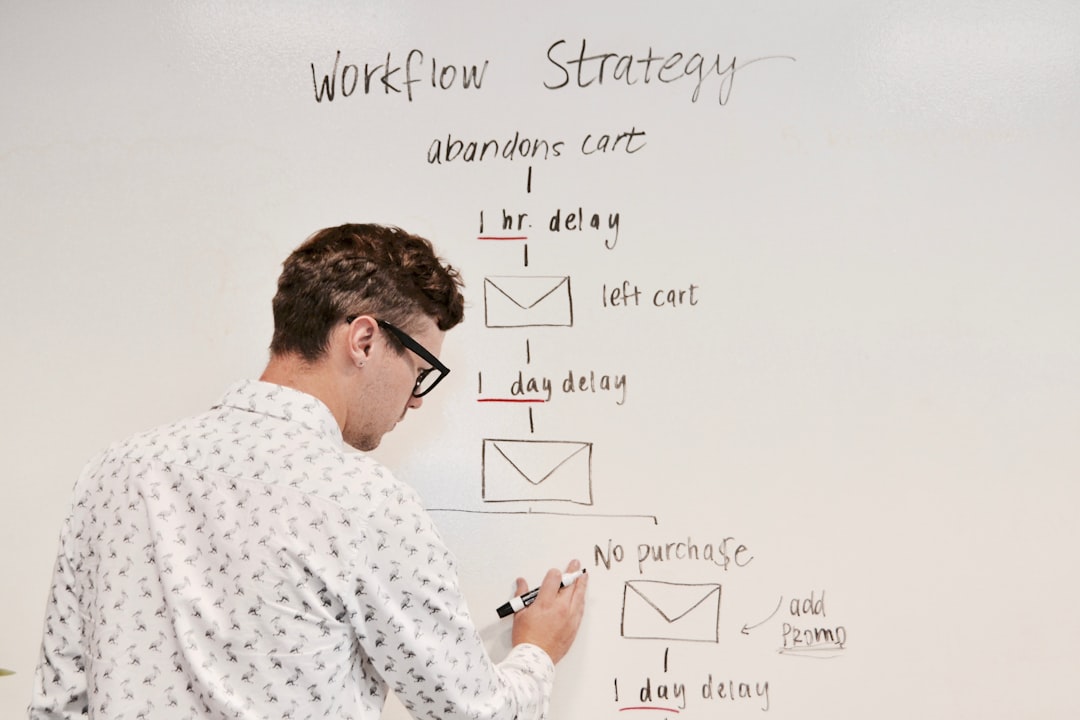
Best Zapier Automations for Solopreneurs (2025)
Most solopreneurs discover Zapier, set up a Zap that forwards a form submission to their inbox, and then quietly forget the tool exists. That’s the automation equivalent of buying a commercial espresso machine and only using it to heat water. Zapier’s real value isn’t in replacing one manual step — it’s in removing entire categories of repetitive work from your week. For a one-person business where every hour is load-bearing, that compounding effect is significant. This guide covers the exact Zaps worth building in 2025: what they do, why they matter for solopreneurs specifically, and the step-by-step logic for each one so you can build them in an afternoon.
Why Zapier Is the Right Automation Tool for Solopreneurs
Before getting into specific automations, it’s worth understanding why Zapier specifically makes sense for a one-person operation rather than alternatives like Make (formerly Integromat).
Zapier is built for speed of setup, not maximum flexibility. For complex, branching workflows with advanced data transformation, Make is more powerful. But for the kind of straightforward “when X happens, do Y (and maybe Z)” automations that drive 90% of solopreneur time savings, Zapier gets you from zero to running in 15–30 minutes per Zap. The learning curve is low enough that you don’t need to set aside a weekend to figure it out.
Zapier also has the largest native integration library — over 6,000 apps — which means whatever tools you’re already using almost certainly connect without needing custom webhooks or API work. For a solopreneur without a technical background, that breadth is the whole value proposition.
The 7 Best Zapier Automations for Solopreneurs
1. Lead Capture to CRM (The Non-Negotiable First Zap)
If you have any kind of website contact form, inquiry form, or lead magnet, your first Zap should move every new lead into a CRM or tracking system automatically — no manual copying, no missed entries because you checked email late.
Trigger: New form submission (Typeform, JotForm, Google Forms, or your website form tool)
Actions:
- Create a new contact in your CRM (HubSpot, Pipedrive, or even an Airtable base)
- Send an automated acknowledgment email to the lead
- Post a notification to your Slack or send yourself an SMS
This Zap means no lead ever sits unacknowledged because you were in a client meeting. The confirmation email goes out in seconds. The contact lands in your pipeline. You get a heads-up. All three things happen before you’ve even seen the submission.
If you use Airtable as your lightweight CRM, this Zap works particularly well — Airtable’s Zapier integration is robust and lets you populate multiple fields per record from a single form submission.
2. Automated Client Onboarding Sequence
Client onboarding is the category of work where solopreneurs lose the most time to repetitive manual tasks. Every new client needs a welcome email, a contract (if not already signed), an intake form, and a kickoff call scheduled. Done manually, this takes 30–60 minutes per client. Automated, it takes zero ongoing effort after the initial setup.
Trigger: Payment received in Stripe, or contract signed in your e-signature tool
Actions:
- Send a personalized welcome email via Gmail (using the client’s name and package details from the payment data)
- Create a new project record in Notion, ClickUp, or Airtable from a template
- Send an intake form link (Typeform or JotForm)
- Send a Calendly scheduling link for the kickoff call
- Create a task in your project manager: “Review intake form — [client name]”
The client receives a professional, coordinated onboarding experience within minutes of paying. You receive a notification and a task list. Nothing requires your attention until the intake form comes back.
3. Invoice Follow-Up Reminder
Chasing late invoices is one of the most emotionally draining tasks in a solo business. It’s also completely automatable. Instead of manually tracking which invoices are overdue and writing follow-up emails from scratch, set Zapier to do it for you.
Trigger: Invoice status changes to “overdue” in FreshBooks, QuickBooks, or Wave
Actions:
- Send a polite follow-up email to the client (with invoice details pulled from the trigger data)
- Add a task to your project manager: “Invoice overdue — follow up manually if no response in 48 hours”
- Log the follow-up in your client record in Airtable or your CRM
You can extend this with a delay step — wait 5 days after the first automated follow-up, then send a second, slightly more direct reminder. The entire sequence runs without you thinking about it until a client responds or the situation escalates to something that genuinely requires your judgment.
4. Content Repurposing Workflow
If you publish any long-form content — blog posts, newsletters, podcast episodes — there’s a repurposing workflow worth automating. Instead of manually reformatting content for each platform, Zapier can trigger a chain of distribution actions every time you publish.
Trigger: New post published on your blog (WordPress, Ghost, or Webflow RSS feed)
Actions:
- Save the post title, URL, and excerpt to an Airtable content tracker
- Create a task in ClickUp or Notion: “Repurpose [post title] for LinkedIn + newsletter”
- Send yourself a formatted email with the post details and a prompt to write social variations
- Optionally: post a “new article” notification to a Slack channel or Discord community
This doesn’t automate the creative repurposing itself — that still benefits from your judgment — but it eliminates the administrative layer of tracking what’s been published, creating follow-up tasks, and notifying your audience. Each piece of content automatically generates its own task trail.
5. Calendar to Project Management Sync
Every call on your calendar should automatically create context in your project management system. When a client call is booked via Calendly, Zapier can spin up a task, pull in relevant context, and set a reminder — without you touching anything.
Trigger: New event created in Calendly (or Google Calendar)
Actions:
- Create a task in ClickUp or Notion: “Prep for call with [invitee name] — [date/time]”
- Add a subtask: “Send follow-up email after call”
- Update the client’s record in Airtable with the scheduled call date
- Send yourself a 30-minute pre-call reminder via email or SMS
Solopreneurs who do a high volume of calls — sales calls, client check-ins, discovery sessions — recover significant time from this single Zap. Every call has a prep task, a follow-up task, and a CRM update, automatically, the moment it’s scheduled.
6. New Customer to Email List + Welcome Sequence
If you sell digital products, courses, or subscriptions, every new customer should immediately enter your email list and receive a structured welcome sequence. Doing this manually means delays, inconsistency, and customers who slip through the cracks during busy periods.
Trigger: New order in Gumroad, Stripe, or your e-commerce platform
Actions:
- Add the customer to your email platform (ConvertKit, Mailchimp, or ActiveCampaign) with a specific tag for the product purchased
- Enroll them in a welcome sequence specific to that product
- Create a record in your customer database in Airtable
- Send yourself a “new customer” notification with their details
The tag-based enrollment is the key detail — it means customers who buy different products enter different sequences automatically. One Zap handles the routing; your email platform handles the nurture.
7. Weekly Business Review Automation
This one is less obvious but quietly powerful. Set a recurring Zap (using Zapier’s Schedule trigger) to run every Friday afternoon and compile a snapshot of your week: tasks completed, invoices sent, leads received, calls logged.
Trigger: Schedule — every Friday at 4pm
Actions:
- Pull a count of new leads from your Airtable CRM base
- Pull open invoice total from your accounting tool
- Create a new “Weekly Review” entry in Notion with a template and the pulled data pre-filled
- Send yourself an email prompt: “Your weekly review is ready — 5 minutes before you close out.”
This turns a review habit from something you have to remember and manually compile into something that’s waiting for you every Friday with the data already pulled. For solopreneurs building sustainable businesses, the reflection habit matters as much as the automation.
Zapier Plan Comparison for Solopreneurs
| Plan | Price | Zaps | Tasks/Month | Multi-Step Zaps | Best For |
|---|---|---|---|---|---|
| Free | $0 | 5 | 100 | No | Testing, 1-2 simple automations |
| Starter | ~$29/mo | 20 | 750 | Yes | Early-stage solopreneurs |
| Professional | ~$73/mo | Unlimited | 2,000 | Yes + Paths | Active solopreneurs with complex flows |
| Team | ~$103/mo | Unlimited | 50,000 | Yes + shared workspace | Solopreneurs with VAs or contractors |
Most solopreneurs running the seven automations above land comfortably on the Professional plan. The Paths feature (conditional logic) is needed for the more sophisticated flows like tiered onboarding and invoice follow-up sequencing. If you’re just starting out, the Starter plan covers the first three Zaps with room to grow.
How to Prioritize Which Zaps to Build First
With seven Zap ideas and a limited setup budget of time and mental energy, sequencing matters. Here’s a simple prioritization framework:
- Highest pain first: Which manual task do you most dread each week? Build that Zap first. The motivation to get it right is highest, and the relief when it works is immediate.
- Client-facing before internal: Automations that affect your client experience (onboarding, follow-up, communication) return more value than internal organization Zaps. Get the client-facing ones working before optimizing your personal workflow.
- Simple triggers before complex ones: A two-step Zap with a reliable trigger is better than a five-step Zap that breaks every week. Start simple, add complexity only once the basics are stable.
- Revenue-adjacent first: Lead capture, onboarding, and invoice follow-up directly touch your revenue cycle. Content repurposing and review automations are valuable but lower priority than the ones that affect whether you get paid.
- The highest-leverage Zapier automations for solopreneurs target repetitive, client-facing workflows — lead capture, onboarding, and invoice follow-up — where the time savings compound across every new client or lead.
- Multi-step Zaps (available on Starter plan and above) unlock the real value of Zapier — single-trigger flows that complete 3–5 tasks simultaneously are where hours get reclaimed, not simple two-step connections.
- Calendly + ClickUp or Notion + Zapier is one of the highest-ROI automation stacks for solopreneurs — scheduling, project management, and automation working together eliminate most of the manual coordination work in a one-person business.
- Prioritize client-facing and revenue-adjacent automations before internal organization Zaps — the ones that affect whether you get leads, onboard clients, and get paid deliver the most immediate return.
- Track your task consumption carefully — Zapier bills by task step, not by Zap run, so high-volume triggers on multi-step Zaps can consume your monthly allowance faster than expected.
Frequently Asked Questions
How long does it take to set up a Zapier automation?
Simple two-step Zaps take 10–15 minutes once you’ve connected your accounts. Multi-step Zaps with conditional logic (Paths) take 30–60 minutes the first time, including testing. The onboarding sequence Zap described above typically takes about 45 minutes to build and test end-to-end. After the first few Zaps, the builder becomes intuitive and setup time drops significantly.
Do I need to know how to code to use Zapier?
No. Zapier is a no-code tool designed for non-technical users. The interface is a guided wizard — you pick your trigger app, select the triggering event, connect your account, and then do the same for each action step. The only time coding knowledge helps is if you need to use Zapier’s Code step (for custom data transformation), which most solopreneurs never need for standard workflows.
What’s the difference between Zapier and Make for solopreneurs?
Make is more powerful and more affordable at higher automation volumes, but has a steeper learning curve. Its visual scenario builder handles complex branching logic better than Zapier’s Paths feature. For solopreneurs with straightforward workflows and no technical background, Zapier’s ease of setup is usually worth the premium. For solopreneurs who are comfortable with visual logic builders and running high task volumes, Make delivers more for less. Many experienced automators use both — Zapier for simple integrations, Make for complex multi-branch scenarios.
Can Zapier connect to Notion and Airtable?
Yes, both have native Zapier integrations with strong functionality. The Notion integration allows creating pages, updating database entries, and appending content to existing pages. The Airtable integration supports creating records, updating fields, and triggering Zaps when records change. Both work reliably and are commonly used in the solopreneur automation stacks described in this guide.
What happens if a Zap fails while I’m not watching?
Zapier logs every Zap run — successful and failed — in your dashboard under “Zap History.” When a Zap fails, Zapier sends you an email notification with the error details. Most failures are caused by a disconnected account (your app re-authentication expired) or a missing required field in a trigger. Zapier also has a replay feature that lets you re-run a failed task once you’ve fixed the underlying issue — so data isn’t permanently lost when something breaks.



5 Comments