Build a No-Code Ops Dashboard for Solopreneurs Fast (2026)
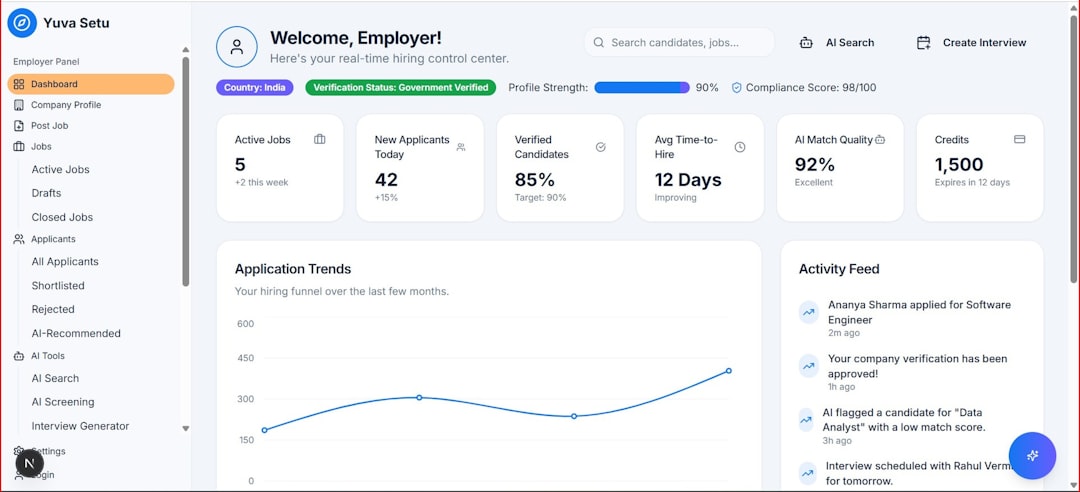
If you’re running a solo business, you already know the feeling: your tasks are in one tool, your client pipeline is in another, your revenue numbers are in a spreadsheet, and your calendar is somewhere else entirely. Every morning starts with a mental reconciliation of four different systems before you can figure out what to actually work on. That’s not a workflow — it’s a tax on your attention. A no-code ops dashboard fixes this by pulling everything that matters into one view: your live pipeline, your active deliverables, your financial metrics, and your daily priorities, all in one place you open first thing every morning. This guide shows you exactly how to build it.
What a Solopreneur Ops Dashboard Actually Needs to Show
Before choosing tools, define what the dashboard needs to display. Most solopreneurs need four quadrants of information:
- Revenue pipeline — active prospects, deal stages, expected close dates, and total pipeline value
- Active project status — current client work, deliverable status, and upcoming deadlines
- Key metrics — monthly revenue, invoices outstanding, leads in queue, and utilization rate
- Daily priorities — the three to five things that move the business forward today, separated from inbox noise
Everything else is optional. The dashboard that actually gets used daily is the one that answers “what do I need to do today and how is the business doing?” in 60 seconds. Resist the temptation to build a dashboard that’s impressive rather than useful — more panels means more maintenance and more reasons to stop opening it.
Choosing Your Dashboard Foundation
Three no-code platforms handle the ops dashboard use case well for solopreneurs. Each has a different strength:
| Platform | Best For | Dashboard Strength | Free Tier | Paid Plan |
|---|---|---|---|---|
| Notion | Flexibility, linked databases, all-in-one workspace | Custom layouts, linked views, rich content blocks | Yes — generous | $10/seat/mo (Plus) |
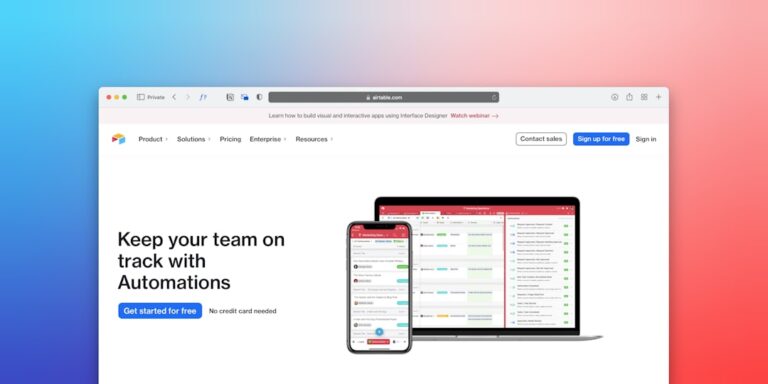
| Airtable | Data-heavy ops, formula fields, structured metrics | Interface Designer — true app-style dashboards | Yes — limited | $20/seat/mo (Team) |
| ClickUp | Task-heavy workflows, built-in dashboards | Native Dashboard widgets — no build required | Yes — functional | $7/seat/mo (Unlimited) |
| Monday.com | Visual team ops, client-facing dashboards | Dashboard widgets, workload view, chart blocks | No | $12/seat/mo (Basic) |
**Notion** is the recommended foundation for most solopreneurs because of its flexibility and the quality of its free tier. You can build a complete ops dashboard without paying for anything, and the linked database system means your task data, client data, and project data are all connected rather than siloed in separate panels. If your ops are data-heavy and you need formula-driven metrics and chart visualizations, **Airtable’s** Interface Designer produces more polished dashboards. If you’re already deeply invested in ClickUp for task management, its native Dashboard feature is the fastest path to a functional ops view without adding another tool.
Building the Notion Ops Dashboard: Step by Step
Step 1: Create the Four Core Databases
Your dashboard is only as good as the underlying data. Before building the dashboard page, create four Notion databases that will feed it:
- Clients database — company/client name, status (prospect, active, completed, churned), contract value, start date, assigned services
- Projects database — linked to clients, deliverable name, status, due date, priority, assignee (you)
- Pipeline database — prospect name, deal stage, estimated value, expected close date, source, next action
- Daily tasks database — task name, linked project, due date, priority, status, energy level required
The linked database structure is important: projects link to clients, tasks link to projects. This relational structure is what lets your dashboard surface relevant information without manual data entry every time something changes.
Step 2: Build the Dashboard Page
Create a new Notion page titled “Ops Dashboard” — this is the page you’ll open every morning. Structure it in sections using Notion’s column layout:
**Top row — Status summary:**
Create a “Linked View” of your Pipeline database filtered to show only active deals, sorted by expected close date. Add a rollup property that sums pipeline value so you can see total pipeline at a glance.
**Second row — Active projects:**
Linked view of your Projects database filtered to status = “In Progress,” sorted by due date. Board view works well here so you can see deliverable stages visually.
**Third row — Today’s priorities:**
Linked view of your Daily Tasks database filtered to due date = Today, plus a second filter for high-priority items due in the next 3 days. This is your working list for the day.
**Bottom row — Metrics (manual or automated):**
A simple table or toggle block tracking your core monthly numbers: revenue invoiced, outstanding invoices, new leads, completed deliverables. If you connect Zapier or Make to auto-update these, they become live. If not, a 5-minute Friday update keeps them accurate enough to be useful.
Step 3: Connect Your Tools With Zapier or Make
A static dashboard you update manually is useful. A dashboard that updates automatically is transformative. The key integrations that keep your Notion ops dashboard current without manual work:
**Calendly → Notion Pipeline:**
When a discovery call is booked via Calendly, automatically create a prospect entry in your Pipeline database with the prospect’s name, email, and meeting date. This means every qualified conversation starts as a tracked pipeline entry without you entering anything.
Setup: Zapier — “New Invitee in Calendly” → “Create Database Item in Notion.” Field mapping takes 10 minutes. You’ll find detailed instructions in our guide on how to connect Notion and Zapier for automated workflows.
**Stripe or invoice tool → Notion Metrics:**
When an invoice is paid, automatically update your revenue tracker in Notion. Zapier’s Stripe integration maps payment amount, client name, and date to a Notion database row — your monthly revenue number stays current without a Friday data entry session.
**Project management status → Dashboard sync:**
If you use a separate project management tool (ClickUp, Asana, Linear), Zapier can push status updates to your Notion Projects database. This keeps the dashboard accurate even when your detailed project work happens elsewhere.
For more complex multi-step automations — like one that creates a project, notifies a client, and updates your dashboard simultaneously — **Make** handles conditional logic and multi-step flows more elegantly than Zapier. Our guide on how to automate client reports with Make.com covers the setup approach.
Building in Airtable Instead: When It Makes More Sense
If your ops are numbers-heavy — you track multiple revenue streams, project profitability, time vs. budget, or contractor costs — Airtable’s Interface Designer produces a more powerful dashboard than Notion at the same level of effort.
Airtable’s formula fields calculate metrics automatically from your base data (profit margin = revenue – cost, without any external automation needed). The Interface Designer then lets you build a visual dashboard on top of that data with charts, summary blocks, and filtered record lists — more like an actual business intelligence tool than a linked document.
The trade-off: Airtable has a steeper initial learning curve for the database design, and the free plan limits you to 1,000 records per base. For solopreneurs with a small client roster and straightforward project tracking, Notion’s flexibility and free tier are the better starting point. For those tracking complex financial or operational data, Airtable’s calculation power earns its place. Our guide on best Airtable automations for small business project tracking covers setting up the data layer that feeds a dashboard effectively.
The ClickUp Dashboard Option: Fastest Time to Live
If you’re already using ClickUp for task and project management, the fastest path to an ops dashboard isn’t building one in Notion — it’s activating ClickUp’s native Dashboard feature.
ClickUp Dashboards let you add widgets for: task status summaries, overdue task alerts, time tracking totals, workload by project, deal pipeline (via ClickUp CRM), and custom metrics. The setup is drag-and-drop and connects directly to your existing ClickUp data without any Zapier configuration.
The limitation: ClickUp Dashboards only show ClickUp data. If your pipeline lives in HubSpot or your invoices are in FreshBooks, those numbers don’t appear without an integration. For solopreneurs running their full operation inside ClickUp, it’s the fastest dashboard path. For those with data spread across multiple tools, Notion + Zapier is more flexible. Our guide on best ClickUp automations for small agency operations covers setting up the underlying data flows that make a ClickUp dashboard genuinely informative.
Keeping the Dashboard From Becoming Stale
The most common dashboard failure is abandonment — you build something great, use it for three weeks, and gradually stop opening it because maintaining the data takes more discipline than the value it returns. Prevent this with three rules:
- Automate every data input you can — if updating the dashboard requires manual work, it won’t happen consistently. Spend 2 hours automating the most frequent updates before you consider the build done.
- Weekly 15-minute maintenance session — archive completed projects, update pipeline stages that changed, check metric accuracy. Schedule it on your calendar like any other recurring task.
- Never add a new panel without removing one — dashboard complexity is the enemy of daily use. If you add a new metric, ask what it’s replacing. More panels means more maintenance and slower comprehension at a glance.
The 30-Minute Minimum Viable Dashboard
If you want something running today rather than a polished build next weekend, here’s the fastest possible version:
- Create a new Notion page: “Daily Ops”
- Add a Heading 2: “Today” — below it, a simple bulleted list of your top 3 priorities (typed manually each morning)
- Add a Heading 2: “Active Projects” — create a simple inline Notion database with columns: Client, Project, Status, Due Date. Add your 3–5 active projects.
- Add a Heading 2: “Pipeline” — another inline database: Prospect, Stage, Value, Next Action. Add your open deals.
- Add a Heading 2: “This Month” — a simple table: Revenue Invoiced, Outstanding, New Leads, Deliverables Completed. Update manually every Friday (5 minutes).
This minimum viable dashboard takes 30 minutes to build and is genuinely useful from day one. Add automation, linked views, and connected tools over time as you identify the specific friction points in your workflow. Starting simple and iterating beats spending a weekend on a complex build you never open. For a complete system that extends this dashboard into a full solopreneur operating system, our guide on building a solopreneur OS with Notion and Zapier covers the full architecture.
- Notion is the best foundation for most solopreneurs — its linked database system, flexible layout, and generous free tier make it the fastest path to a functional ops dashboard without writing code or paying for a new tool.
- The four essential dashboard quadrants are revenue pipeline, active project status, key metrics, and daily priorities — every panel beyond these four should earn its place by answering a question you check daily.
- Automation is what separates a useful dashboard from a maintenance burden — Calendly → Pipeline and invoice paid → revenue tracker are the two integrations that pay back their setup time immediately.
- Airtable wins for data-heavy solopreneurs who need formula-calculated metrics and chart visualizations; ClickUp wins for task-centric operators already inside the ClickUp ecosystem who want the fastest possible time to a live dashboard.
- Build the minimum viable version first — 30 minutes, five sections, manual updates — and iterate toward automation once you’ve confirmed the daily habit sticks. Complexity before habit guarantees abandonment.
Frequently Asked Questions
Do I need to pay for any tools to build a no-code ops dashboard?
No — the minimum viable version described in this guide runs entirely on free tiers. Notion’s free plan supports unlimited pages and databases, which covers the entire dashboard build. Zapier’s free plan includes 100 automation tasks per month — enough to handle the Calendly-to-pipeline integration and one or two other automations at typical solopreneur volume. If you outgrow the free tiers, Notion Plus at $10/month and Zapier Starter at $29/month cover the needs of most solopreneurs with active businesses. The tools that require paid plans from the start are Airtable Interface Designer (Team plan) and Monday.com (no free tier with dashboard features) — both are worth evaluating once you’ve confirmed the dashboard habit is working on a free foundation.
How long does it take to build a proper ops dashboard from scratch?
The minimum viable version takes 30 minutes. A complete build with linked databases, filtered views, and basic automations takes a focused 4–6 hour session — a weekend morning. A fully automated dashboard with Zapier integrations connecting four or five tools takes 8–10 hours total, including testing. Most solopreneurs find the best approach is a two-phase build: Phase 1 is the 30-minute manual version you use for two to three weeks to confirm the habit and identify which data you actually check daily. Phase 2 is the full build, designed around the specific information you confirmed matters to your workflow. Phase 2 is more efficient because you’re not building features you’ll discover you don’t need.
What’s the difference between an ops dashboard and a project management tool?
A project management tool (ClickUp, Asana, Linear) is where you do the detailed work of managing tasks, deadlines, and deliverables — the granular level. An ops dashboard is a read-only command center that shows you the health of your business at a glance — the helicopter view. The dashboard doesn’t replace your project management tool; it surfaces the most important information from it alongside your pipeline, metrics, and priorities, so you can make decisions at the business level without opening four different apps. The best ops dashboards pull summarized data from project management tools (and other systems) rather than trying to replace them.
Can I use Google Sheets as the foundation instead of Notion or Airtable?
Yes — Google Sheets is a legitimate foundation for a no-code ops dashboard, and it has one significant advantage: Zapier integrates with it extremely cleanly, making automated data feeds straightforward to configure. The limitation is the user interface — a Sheets dashboard requires manual formatting to be readable at a glance, and it doesn’t have the visual database views (kanban, timeline, gallery) that make Notion and Airtable more intuitive for project and pipeline tracking. For solopreneurs who live in Google Workspace and want the fastest possible integration with their existing tools, starting with Sheets and Zapier is a valid approach. Our guide on Zapier + Google Sheets for automated business reporting covers the specific integration patterns that make a Sheets-based dashboard functional.
How do I handle sensitive financial data in a Notion dashboard?
Notion’s permission system lets you control who sees what — pages and databases can be set to private (visible only to you), shared with specific guests, or made public. For a solo operator, your ops dashboard should be set to private by default, with the option to share specific project views with clients or contractors via page-level sharing. Financial data (revenue, pipeline values, invoices) should live in a database that’s never shared publicly or with clients — create separate client-facing views that show project status without the financial layer. If you ever bring on a team member, Notion’s workspace permission system lets you grant database-level access controls that keep financial data visible only to the right people.