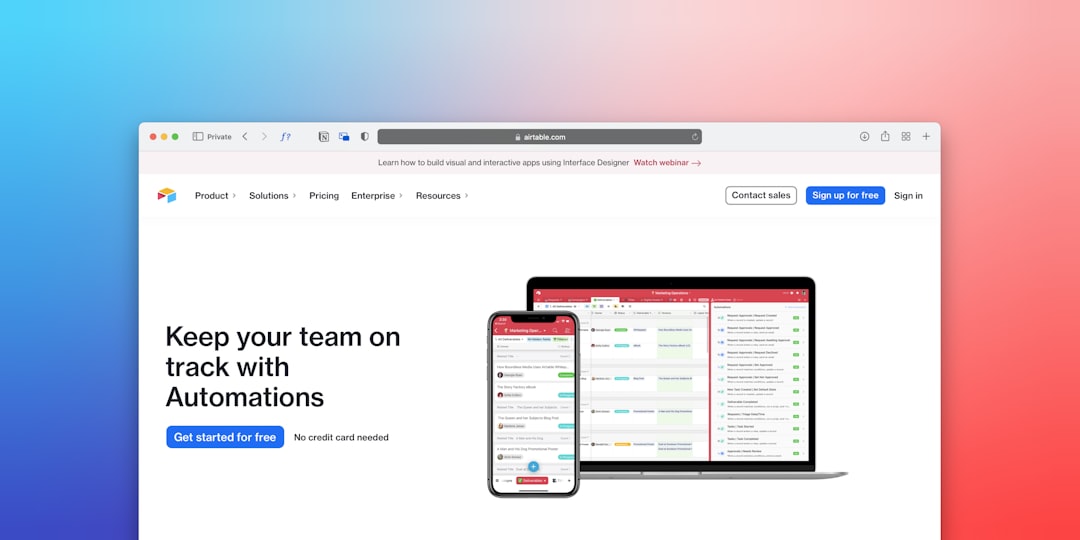
Create a No-Code Lead Tracker in Airtable Step by Step
Most solopreneurs lose leads the same way: not because the lead wasn’t interested, but because follow-up slipped. A contact came in through the website, you had a good call, you meant to send a proposal — and then a client emergency happened and that lead fell to the bottom of a spreadsheet you haven’t opened in two weeks. A proper lead tracker doesn’t require a $90/month CRM subscription. Airtable’s free plan has everything you need to build a visual, automated lead pipeline that keeps every prospect moving forward without relying on your memory. Here’s how to build it from scratch.
Why Airtable Works Better Than a Spreadsheet for Lead Tracking
Google Sheets can technically hold your lead data. But it can’t give you a kanban board view, send you automated reminders when a follow-up date passes, filter your hot leads from your cold ones in one click, or capture new leads from a web form directly into your pipeline. Airtable does all of these.
The structural difference: Airtable treats each row as a rich record rather than a flat row. Each lead record can hold text, dates, attachments, checkboxes, dropdown selects, linked records, and even rich text notes — all in one place. You can then view those records as a grid, a kanban board, a calendar, or a gallery, switching between them with one click depending on what you need to see.
For a solopreneur managing 10–50 active leads at any time, this structure is the difference between a pipeline you actually use and a spreadsheet you dread opening.
Step 1: Set Up Your Airtable Base
Start by creating a new base in Airtable. Name it “Lead Tracker” or something specific to your business — “Client Pipeline 2026” works fine. Inside the base, you’ll have one primary table called “Leads.”
The Essential Fields to Add
Delete the placeholder fields Airtable creates by default and build these from scratch:
- Lead Name (Single line text — primary field): Full name of the person or company
- Company (Single line text): Business name if applicable
- Email (Email field type): Auto-formats and validates email addresses
- Phone (Phone number field type): Auto-formats phone numbers
- Lead Source (Single select): Referral, Website, Social, Cold Outreach, Event, Other
- Status (Single select): New, Contacted, Qualified, Proposal Sent, Negotiating, Won, Lost, Nurturing
- Service Interest (Single select or multi-select): Your main service offerings
- Estimated Value (Currency): Estimated project or contract value
- Next Action (Single line text): What needs to happen next — “Send proposal,” “Schedule discovery call,” etc.
- Follow-Up Date (Date field): When you need to take that next action
- Notes (Long text): Key details from conversations, objections, context
- Date Added (Date — set to created time): Auto-populates when a record is created
- Last Modified (Last modified time): Auto-updates whenever you change anything in the record
Step 2: Build Your Pipeline Views
The power of Airtable over a spreadsheet is that the same data displays differently depending on what you need. Set up these three views inside your Leads table:
View 1: Kanban Board (Pipeline Overview)
Click “Add view” → “Kanban.” Set the grouping field to “Status.” Now every lead lives in a column based on where it is in your pipeline. Drag cards between columns as leads progress — no status dropdown to click, just drag and drop.
This view answers the question “where is everything right now?” in under five seconds.
View 2: Follow-Up Calendar
Add a Calendar view using the “Follow-Up Date” field as the date source. Every lead with a scheduled follow-up appears on the calendar on the date it’s due. Color-code by Status so you can see at a glance whether tomorrow’s follow-ups are with new contacts or with prospects who’ve already received proposals.
View 3: Hot Leads Grid (Filtered)
Create a filtered Grid view that shows only leads with Status = “Qualified” OR “Proposal Sent” AND Follow-Up Date ≤ Today + 7 days. This is your working view — the list of leads that deserve your attention right now, with everything else filtered out. Open this view every morning instead of scrolling through your full pipeline.
Step 3: Set Up Lead Capture From a Form
Manually adding leads to Airtable is fine for outbound prospecting. For inbound leads — website contact forms, social media inquiries, event registrations — you want them entering your tracker automatically without any manual data entry.
Option A: Airtable’s Native Form View
Create a Form view inside your Leads table. Airtable generates a shareable form link that maps directly to your table fields. Include: Name, Company, Email, Phone, Service Interest, and a “Tell us about your project” long text field. Every form submission creates a new record in your Leads table automatically.
Embed the form link on your website contact page or “Work With Me” page. New leads appear in your tracker the moment someone submits — no Zapier needed for this part.
Option B: Connect Via Zapier for External Forms
If you use Typeform, JotForm, or a WordPress contact form, Zapier connects those forms to your Airtable leads table automatically. A new form submission in Typeform → creates a new Airtable record with all fields mapped. This takes about 15 minutes to set up and runs silently from that point on.
Step 4: Automate Follow-Up Reminders
This is where the tracker becomes genuinely powerful. Airtable’s native automation feature (available on the free plan, with a limit of 100 automation runs per month) can send you email reminders when follow-up dates arrive — without any third-party tool.
Building the Follow-Up Reminder Automation
- Click “Automations” in the top navigation bar
- Create a new automation, trigger type: “When a record matches conditions”
- Set conditions: Follow-Up Date = Today AND Status is not “Won” AND Status is not “Lost”
- Add action: Send email — to your own address, with subject “Follow-up due: {Lead Name}” and body including the lead’s name, status, next action, and email
- Set the automation to run daily
Every morning, you receive one email per lead that has a follow-up due that day. No dashboard to check, no calendar to manage — the reminders come to you.
For more advanced follow-up automation — including sending the follow-up email to the lead automatically rather than just reminding yourself — Airtable’s automation capabilities for small business project tracking cover the more sophisticated trigger and action combinations you can layer in once your base build is solid.
Step 5: Add Lead Qualification Scoring (Optional)
Once your basic tracker is running, a simple lead scoring system helps you prioritize without adding much complexity. Add a “Score” formula field with a calculation based on your key qualifying criteria.
A basic formula might weight: service match (is their interest in your highest-value service?), estimated value (is the project above your minimum threshold?), and source (referrals close at higher rates than cold outreach). Airtable’s formula field can calculate a numeric score from 1–10 based on these factors, which then sorts your Hot Leads view from highest to lowest priority automatically.
Comparing Lead Tracker Options for Solopreneurs
| Tool | Setup Time | Kanban View | Native Automations | Form Capture | Free Plan |
|---|---|---|---|---|---|
| Airtable | 1–2 hours | ✅ Native | ✅ 100 runs/mo free | ✅ Native form view | ✅ 1,000 records |
| Notion | 2–3 hours | ✅ Board view | ⚠️ Limited (via Zapier) | ⚠️ Basic | ✅ Unlimited pages |
| ClickUp | 2–4 hours | ✅ Board view | ✅ Strong | ⚠️ Via integration | ✅ Unlimited tasks |
| Monday.com | 1–2 hours | ✅ Native | ✅ Strong | ✅ Native forms | ✅ 2 seats |
| Google Sheets | 30 min | ❌ | ❌ (via Apps Script) | ⚠️ Via Google Forms | ✅ Unlimited |
Airtable wins for solopreneurs who want the fastest path from zero to a functional visual pipeline with native automation. ClickUp is the better choice if you want to manage both your leads and your active client work in a single tool — and building a freelancer CRM in ClickUp with smart automation is a natural next step once your pipeline outgrows what Airtable’s free plan offers.
Connecting Your Lead Tracker to the Rest of Your Stack
A standalone Airtable lead tracker is useful. A connected one is transformational. Once your base is built and working, these are the highest-value integrations to add:
- Calendly → Airtable: When a prospect books a discovery call, Zapier creates a new lead record in Airtable automatically — name, email, and meeting time pre-populated. No manual entry for booked calls ever again.
- Airtable → ClickUp or Notion: When a lead status changes to “Won,” a Zapier workflow creates a new client project from a template in your project management tool. The lead becomes a client without any manual workspace setup.
- Airtable → Gmail: When a follow-up date arrives and status is “Proposal Sent,” Make can send a personalized follow-up email automatically — pulling the lead’s name and service interest from the record to personalize the message.
For a broader look at how these integrations fit into a full automation system for your practice, the best Airtable automations for small business project tracking covers the most impactful triggers and actions beyond basic lead tracking.
- A functional Airtable lead tracker requires 13 fields, three views (kanban, calendar, filtered hot leads), and one native automation — all buildable in under two hours on the free plan.
- Airtable’s Form view captures inbound leads directly into your pipeline with zero manual entry — embed it on your website immediately after setup.
- The follow-up reminder automation — triggered when Follow-Up Date = Today — is the single highest-value automation to add first. It eliminates the “I forgot to follow up” problem completely.
- Airtable beats Google Sheets for lead tracking because of kanban views, field type validation, and native automations — not because of price (both are free at entry level).
- Once your tracker is working, the Calendly → Airtable and Won → ClickUp project integrations are the two connections that unlock the most time savings in a connected automation stack.
Frequently Asked Questions
Is Airtable’s free plan enough to build a lead tracker?
Yes — Airtable’s free plan covers everything this build requires: unlimited bases, 1,000 records per base, all field types including formulas, kanban and calendar views, form views for lead capture, and 100 automation runs per month. Most solopreneurs don’t need a paid plan until they exceed 1,000 leads or need more than 100 automated actions per month.
How is an Airtable lead tracker different from a CRM?
A traditional CRM like HubSpot or Pipedrive comes with pre-built pipeline stages, email tracking, contact timelines, and reporting dashboards. An Airtable lead tracker is custom-built — you define every field and view — which makes it more flexible but requires initial setup. For solopreneurs who don’t need email logging or deal forecasting, the Airtable build covers 90% of daily CRM use cases at zero cost.
Can I automate lead follow-up emails directly from Airtable?
Yes, with some setup. Airtable’s native automations can send emails using your connected Gmail account when record conditions are met. For sending personalized follow-up emails to leads (rather than just notifying yourself), you’ll need either Airtable’s Gmail action (available on the free plan with limitations) or a Zapier/Make connection that handles the email sending through your email provider with better personalization options.
What’s the best way to get leads into Airtable automatically?
Airtable’s native Form view is the simplest option — create a form, embed the link on your website, and every submission creates a lead record instantly. For leads coming from other sources (Typeform, Facebook Lead Ads, Calendly bookings), Zapier connects those sources to your Airtable base in under 20 minutes per integration. The Calendly → Airtable connection is particularly high-value for service businesses where discovery call bookings are the primary lead capture mechanism.
When should I upgrade from Airtable to a dedicated CRM?
Consider upgrading when: you’re managing more than 50 active leads simultaneously and need advanced filtering, you want automatic email open and click tracking without manual logging, your follow-up sequences need more than three steps, or you’re adding a second salesperson who needs shared pipeline visibility with activity logging. Below those thresholds, the Airtable build outlined here handles the core job reliably without the cost or complexity of a dedicated CRM platform.