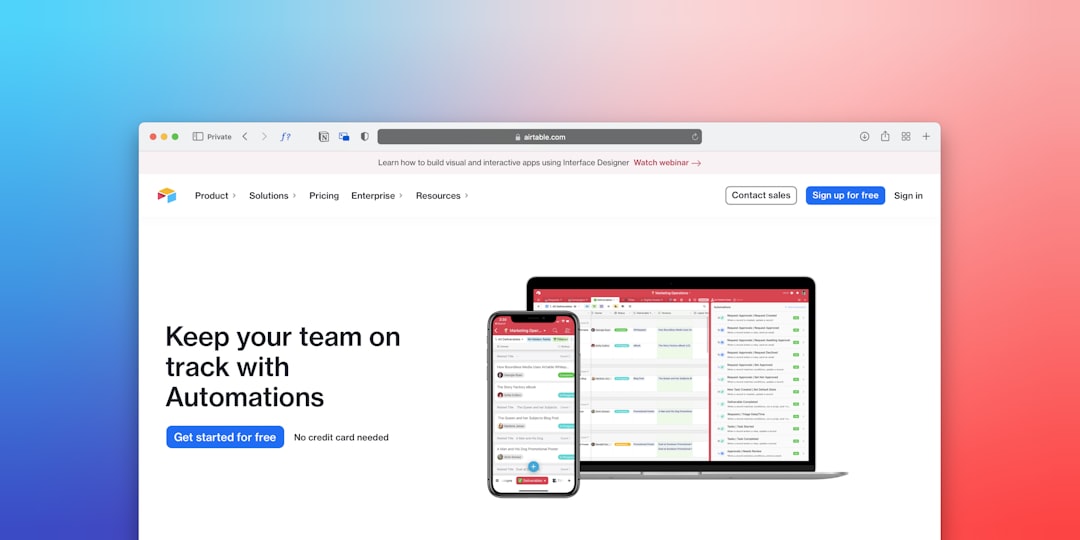
Airtable Automations for Small Business: A Starter Guide
Disclosure: We may earn a commission when you purchase through links on this site, at no extra cost to you. How we make money.
Most people sign up for Airtable to replace a sprawling spreadsheet and stop there. The client tracker gets built, the project database gets populated, the content calendar gets set up — and then the manual work begins. Every status update typed by hand. Every email written from scratch when a project moves to a new phase. Every overdue record sitting silently until someone notices. The automation engine sitting quietly behind the lightning bolt icon in every Airtable base is one of the most underused productivity tools in the small business stack — and it requires zero coding, zero Zapier account, and zero external tools to start. Once you know how it works, five automations is enough to transform a static database into a system that updates itself.
What Airtable Automations Actually Are
Airtable automations run on the same trigger/action logic you’ll recognize from Zapier or Make.com: when [trigger] happens → do [action]. The difference is that Airtable automations run entirely inside your base — no external accounts, no monthly automation credits eaten from a third-party service, no webhook configuration. The available triggers include:
- When a record is created (new row added to a table)
- When a record matches a condition (a field reaches a certain value)
- When a record enters a view (filtered view — powerful for status-based routing)
- When a form is submitted (built-in Airtable forms)
- At a scheduled time (daily, weekly, custom interval)
- When a record is updated (any field or specific fields change)
Available actions include sending emails, creating or updating records, finding records matching conditions, running scripts (on Pro plan), posting to Slack, and triggering webhooks to external apps. The free plan includes 100 automation runs per month; Plus at $20/seat/month gives you 5,000 runs — more than enough for a solo operator or small team.
The 5 Airtable Automations Every Small Business Should Build
1. Auto-Send an Email When a Project Status Changes
This is the automation that pays back its setup time in the first week. Every time a project or task record changes to a specific status — “Sent for Review,” “Completed,” “On Hold” — Airtable sends a customized email automatically, to you, to a team member, or to the client whose email is stored in that record.
Setup:
- Open your base → click the lightning bolt icon (Automations) → Create automation
- Trigger: When a record matches a condition → Status field equals “Sent for Review”
- Action: Send an email → In the “To” field, click the + and select the linked email field from your record (e.g., Client Email)
- Compose your email using Airtable’s field variables: “Hi {First Name}, your project {Project Name} is ready for your review…”
- Test and enable
The email goes out automatically, immediately, every time the condition is met — without you needing to draft or send anything. For service businesses updating clients on project progress, this single automation eliminates the most repetitive communication task in the week.
2. Auto-Create a Record When a Form Is Submitted
Airtable’s native forms let you collect information from clients, prospects, or team members — and every submission automatically creates a new record in your base. Pair this with an automation and the form submission does double duty: creating the record and triggering an action based on what was submitted.
Example use case — new lead intake:
- Embed an Airtable form on your website for project inquiries
- Trigger: When a form is submitted
- Action 1: Send an email to the lead confirming their submission (using their name and inquiry details from the form)
- Action 2: Create a record in a “New Leads” table with the form data pre-populated
The prospect gets an immediate, personalized confirmation. You get a new lead record in your pipeline without manual data entry. This connects naturally to the broader client acquisition workflow — for everything that happens after the lead is captured, see how to automate client onboarding as a freelancer.
3. Auto-Notify When a Record Becomes Overdue
Overdue tasks sit silently in databases until someone notices — which is usually after the deadline has already damaged a client relationship or missed a revenue opportunity. This automation surfaces overdue records the moment they cross the threshold.
Setup:
- Create a “Due Date” date field and a “Status” field in your project or task table
- Create a filtered view: “Overdue Items” — filter for Due Date before today AND Status is not “Complete”
- Trigger: When a record enters a view → select “Overdue Items” view
- Action: Send an email to yourself (or the assigned team member) with the record name, due date, and a direct link to the Airtable record
The moment a task’s due date passes without being marked complete, the automation fires. You get an email with the specific record name and a one-click link to address it. No manual review of your database required.
4. Auto-Create Linked Records When a New Client Is Added
When you onboard a new client, you typically need to create records in multiple tables simultaneously: a client record, a project record linked to that client, and potentially an invoicing record or a task list. Doing this manually across three tables every time is tedious and inconsistently executed. This automation does it in sequence.
Setup:
- Trigger: When a record is created in your Clients table
- Action 1: Create a record in your Projects table — pre-fill the Client field with the linked client using the record ID from the trigger
- Action 2: Create a record in your Invoices table — link to the same client, set initial status to “Not Started”
- Action 3 (optional): Send an email to yourself confirming the new client setup is complete
New client added → project and invoice records created and linked instantly. Your database structure stays consistent across every engagement without relying on someone remembering to complete the setup manually.
5. Auto-Run a Weekly Status Report on a Schedule
This is Airtable’s scheduled automation at its most practical: once per week, automatically email yourself (or your team) a summary of what’s in progress, what’s overdue, and what’s been completed in the past 7 days — pulled directly from your database without you opening Airtable at all.
Setup:
- Trigger: At a scheduled time → Every Monday at 8:00 AM
- Action: Find records → search your Projects table for records where Status is “In Progress”
- Action: Send an email → include the list of found records with their names, clients, and due dates formatted as a list
Monday morning arrives with your weekly project status in your inbox before you’ve opened a single tab. The entire review routine covered in how to automate recurring tasks in your small business applies here — this scheduled automation handles the reporting side of that weekly rhythm.
Airtable Automations vs. Alternative Platforms
| Platform | Free Automation Runs/Month | Trigger Types | Native Email Action | Best Suited For |
|---|---|---|---|---|
| Airtable | 100 (free), 5,000 (Plus) | Record created, updated, matches condition, form submitted, scheduled | Yes (all tiers) | Database-driven workflows, client tracking |
| ClickUp | 100 (free), 1,000 (Unlimited) | Status change, date, priority, assignee, custom fields | Yes (all tiers) | Project management, task pipelines |
| Notion | Limited (Plus plan) | Property change, scheduled | No native email | Knowledge management + light automation |
| Monday.com | 250 (Basic) | Status change, date, column value, button | Yes | Team boards with approval workflows |
Airtable’s edge over Notion for automation is significant: Notion still lacks a native email action in automations, meaning cross-app connections require Zapier or Make. Airtable sends emails natively, which makes it the stronger choice when client communication is central to your workflow. For a full breakdown of where each platform wins, see Airtable vs Notion for solopreneurs: which wins in 2026.
Connecting Airtable to External Apps
Airtable’s native automations handle everything within your base. When you need to connect Airtable to external tools — your email marketing platform, your CRM, your invoicing software — Zapier and Make.com both support Airtable as a trigger and action platform with hundreds of pre-built integrations.
High-value external connections for freelancers and small businesses:
- Airtable → Gmail: New record triggers a Gmail draft with client-specific content, ready to review and send
- Airtable → Stripe: When an invoice record status changes to “Ready to Send,” trigger invoice creation in Stripe
- Calendly → Airtable: New booking in Calendly automatically creates a new lead record in your Airtable CRM
- Airtable → Slack: When a project reaches “Final Review,” post a message to your team’s project channel
- Typeform → Airtable: Form submissions from your website feed directly into your Airtable lead tracker
For a comprehensive look at which external automations deliver the highest return for solo operators, the best Zapier automations for solopreneurs step by step covers the most impactful cross-app connections in detail.
- Airtable’s built-in automation engine handles email notifications, record creation, scheduled reports, and cross-table linking without any external tools or coding — and it’s available on the free plan with 100 runs/month.
- The five highest-impact automations for small businesses are: status-change emails, form-to-record creation, overdue record alerts, linked record creation on new clients, and weekly scheduled status reports.
- The “When a record enters a view” trigger is the most versatile starting point — create filtered views for specific states and attach automations to each for powerful condition-based routing.
- For cross-app connections (Stripe, Gmail, Calendly), use Zapier or Make.com — Airtable’s native automations handle everything within the base, while external connectors bridge it to the rest of your stack.
- Monitor your automation run count on the free plan — the 100/month limit is easy to exceed, and automations stop silently when the cap is hit.
Frequently Asked Questions
Are Airtable automations available on the free plan?
Yes — Airtable automations are available on the free plan with 100 automation runs per month. All trigger types (record created, record matches condition, form submitted, scheduled, record enters a view, record updated) are available on the free tier. The primary limitation is the run count — for simple automations on small databases, 100 runs is often sufficient. For active small businesses running multiple automations on tables with dozens of records, the Plus plan at $20/seat/month (5,000 runs/month) is typically needed within the first 60 days of serious use.
Can Airtable automations send emails to external people (not just my team)?
Yes — Airtable’s Send Email action can send to any email address, including client email addresses stored as fields in your records. You can use field variables to personalize each email with the recipient’s name, project details, and any other data from the record. This makes client-facing automations — proposal follow-ups, project status updates, invoice notifications — possible natively without an external email tool.
How is Airtable automation different from Zapier?
Airtable automations work entirely within your Airtable base — they trigger on database events and take actions inside Airtable or via a limited set of native integrations (Slack, email, webhooks, scripts). Zapier connects Airtable to hundreds of external apps — Google Sheets, Gmail, Stripe, HubSpot, Calendly, and thousands more. The practical approach: use Airtable’s native automations for everything that stays inside your base, and use Zapier when you need to move data or trigger actions in a completely separate tool. Both can run simultaneously without conflict.
What’s the most useful Airtable automation for a freelancer specifically?
The automatic status-change email to clients is consistently the highest-value automation for freelancers — it eliminates the manual client update emails that consume disproportionate time and attention throughout the project lifecycle. Configure it once for each status milestone (draft submitted, awaiting feedback, revisions complete, final delivery) and your client communication sends itself without interrupting your working time. The linked record creation automation for new clients is a close second, especially if you’re onboarding multiple clients per month.
Can I build a full CRM in Airtable with automations?
Yes — and for many solopreneurs and freelancers, an Airtable CRM is more practical than a dedicated CRM tool. Your contacts, deals, communications log, and project records all live in linked tables, and automations handle the routine updates: new lead captured from form → email confirmation sent → deal record created → status updates trigger client communications. The setup requires more configuration than a purpose-built CRM like HubSpot, but the result is fully customizable to your specific workflow and costs significantly less at equivalent feature levels.
Related Reading
- Best AI Scheduling Tools for Small Business 2026 via BizRunBook
- Klaviyo vs Mailchimp for Small Ecommerce Stores 2026 via SaaSSleuth