How to Automate Client Onboarding as a Freelancer
Disclosure: We may earn a commission when you purchase through links on this site, at no extra cost to you. How we make money.
The first week with a new client sets the tone for the entire engagement. But for most freelancers, that week is a mess of copy-pasted emails, manually created folders, forgotten follow-ups, and spreadsheet updates done at 11pm. You know the drill. The good news: every single one of those steps can be automated — and doing so doesn’t just save you time, it makes you look dramatically more professional than the competition. This guide walks you through building a repeatable, automated client onboarding system from scratch using tools you can start with for free.
What a Fully Automated Onboarding System Looks Like
Before diving into the how, it helps to see the whole picture. A solid freelancer onboarding system handles five things automatically:
- Intake — capturing the client’s information, project scope, and requirements
- Contract and payment — sending a contract for signature and a deposit invoice
- Welcome sequence — delivering a welcome email with next steps and timeline
- Project setup — creating a workspace, task list, and shared folder
- Scheduling — booking a kickoff call without any back-and-forth
When these five steps are automated, a new client goes from “signed” to “fully onboarded” in under 10 minutes — while you’re sleeping, in a client meeting, or doing literally anything else.
Step 1: Build Your Intake Form
Every onboarding flow starts with data collection. Your intake form is the trigger that kicks everything else off, so it needs to capture everything you need upfront — and nothing you don’t.
What to include in your intake form:
- Full name and company name
- Contact email and preferred communication method
- Project type and scope (use dropdown menus to keep answers structured)
- Timeline and budget range
- How they found you (useful for marketing, and it personalizes your welcome message)
Use Typeform, Tally (free), or Google Forms for intake. Typeform has the best UX for clients and integrates natively with Zapier, making it the easiest to automate. Tally is a strong free alternative with webhook support for Make.
Step 2: Automate Contract and Payment
Once the intake form is submitted, the next step is getting a contract signed and a deposit paid — ideally before you do any work. Automating this removes the awkward “just following up on the contract” email from your life entirely.
Connect your intake form to your contract tool using Zapier or Make. When a new form entry arrives, Zapier automatically:
- Creates a new client record in your CRM or spreadsheet
- Sends a contract via HelloSign, DocuSign, or PandaDoc (all have Zapier integrations)
- Fires an invoice via FreshBooks, Wave, or Stripe
You can chain these into a single multi-step Zap so the contract and invoice go out simultaneously. The client gets everything they need in one email thread, which looks clean and intentional — not cobbled together.
Step 3: Send an Automated Welcome Sequence
A great welcome email does three things: it reassures the client they made the right decision, sets clear expectations for what happens next, and gives them a single link to book their kickoff call. Most freelancers send this manually — which means it goes out inconsistently, too late, or not at all after a long day.
Automate it with a Zapier step triggered by contract signature (your contract tool fires a webhook when the document is signed). Your welcome email should include:
- A warm, personalized greeting using the client’s name from your intake form
- A brief timeline overview (when they’ll hear from you, when work starts)
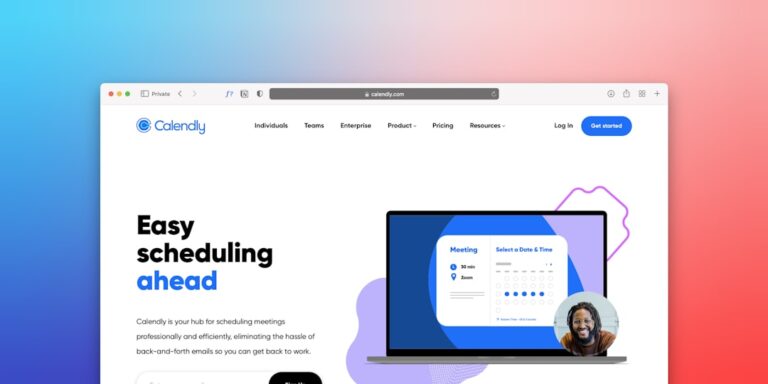
- A Calendly link to book the kickoff call — no scheduling back-and-forth
- Links to any shared assets (Google Drive folder, Notion workspace, brand guidelines)
Calendly’s free plan is sufficient for single event types. If you offer multiple service tiers with different meeting lengths, Calendly Standard ($10/month) gives you unlimited event types and routing forms that can segment clients automatically based on their intake responses.
Step 4: Auto-Create the Project Workspace
This is where the automation really starts to feel like magic. When a client signs and pays, Zapier creates their entire project workspace without you touching anything. Depending on your tool stack, this looks different — but here are the three most common setups for freelancers:
Option A: Notion
Zapier creates a new page in your Notion client database, pre-populated with the client’s name, project type, start date, and contact info from the intake form. You can use a Notion template page as the base — every new client workspace looks identical and professional from day one.
Option B: ClickUp
ClickUp is ideal if you manage multiple concurrent projects and need task-level detail. Zapier creates a new Space or Folder for each client, clones your onboarding task template, and assigns due dates automatically based on the project start date.
Option C: Airtable
If you prefer a database-style view of all your clients and projects, Airtable works beautifully. Zapier creates a new record in your Clients base, links it to your Projects table, and populates all the fields from the intake form — giving you a single source of truth for every engagement.
| Tool | Best For | Free Plan? | Zapier Integration |
|---|---|---|---|
| Notion | Docs + wiki-style client portals | Yes (generous) | Native, reliable |
| ClickUp | Task-heavy project management | Yes (unlimited tasks) | Native, full-featured |
| Airtable | Client database + reporting | Yes (1,200 records) | Native, robust |
| Monday.com | Visual timelines + team collaboration | No (14-day trial) | Native, excellent |
Step 5: Connect It All with One Automation Tool
You have two solid options for stitching the steps above into a single automated flow: Zapier and Make. Zapier is faster to set up and better for straightforward linear flows. Make handles conditional logic better — for example, routing enterprise clients to a different onboarding track than small business clients.
A complete onboarding Zap might look like this:
- Trigger: Typeform → New Submission
- Action 1: Gmail → Send intake confirmation email
- Action 2: PandaDoc → Create and send contract
- Action 3: FreshBooks → Create and send invoice
- Action 4: Notion → Create client database page
- Action 5 (delayed): Gmail → Send welcome email with Calendly link (triggered after contract signed)
This is a multi-step Zap, which requires Zapier’s Starter plan ($19.99/month). If you’re on the free tier, break it into two or three separate Zaps that chain together via webhooks — it takes a bit more setup but achieves the same result.
What This System Costs (And What It Saves)
You can run a complete automated onboarding system for as little as $0/month using free tiers — Tally for intake, Google Docs for contracts, Wave for invoicing, Notion for project management, and Zapier’s free plan to connect them. At that cost level, you’ll handle 1–2 new clients per month comfortably before hitting task limits.
For freelancers onboarding 3+ clients per month, a realistic paid stack looks like: Zapier Starter ($19.99) + Calendly Standard ($10) + your contract tool of choice ($10–20). That’s $40–50/month to eliminate 3–5 hours of manual work per client — a clear ROI from your very first onboarded client.
- A complete automated onboarding system covers five steps: intake, contract and payment, welcome sequence, project setup, and kickoff scheduling.
- Use Zapier or Make to connect your tools — Zapier is faster to set up for straightforward flows; Make handles conditional logic better for complex routing.
- Don’t trigger project creation until the contract is signed and deposit is paid — use a filter or condition in your automation to enforce this.
- Notion, ClickUp, and Airtable all integrate natively with Zapier and work well as automated project workspace tools for freelancers.
- You can build a functional version of this system for free and upgrade selectively as your client volume grows.
Frequently Asked Questions
How long does it take to build an automated onboarding system?
Expect to spend 3–5 hours setting everything up the first time, including testing. The intake form takes 30 minutes, the Zaps take 1–2 hours, and the welcome email copy takes another hour if you write it from scratch. Once it’s built, ongoing maintenance is minimal — maybe 30 minutes a month to review and tweak.
Do I need to know how to code to automate client onboarding?
No. Zapier and Make are both no-code tools with visual workflow builders. If you can use a spreadsheet and follow step-by-step instructions, you have everything you need. The hardest part is deciding which tools to use — the actual automation setup is drag, drop, and map.
Can I automate client onboarding on a tight budget?
Yes. Start with Tally (free intake forms), Google Docs for contracts, Wave (free invoicing), Notion’s free plan for project management, and Zapier’s free tier for up to 100 tasks/month. This covers 1–2 new clients per month at zero cost. Add paid tools only when the free limits become a bottleneck.
What happens if a client doesn’t sign the contract right away?
Most contract tools (HelloSign, PandaDoc, DocuSign) send automatic reminder emails to unsigned documents — configure those reminders in the tool itself, not through Zapier. Keep your automation paused on the contract-signed trigger and let the contract tool handle follow-ups. This keeps your automation clean and avoids duplicate reminders.
Should I use Calendly for kickoff call scheduling?
Calendly is the easiest option for most freelancers — it integrates with Zapier, Google Calendar, and Zoom out of the box, and the free plan covers a single event type. If you want to route different client types to different call lengths (e.g., discovery calls vs. project kickoffs), upgrade to Calendly Standard or use Calendly’s routing forms to send clients to the right booking page automatically.