How to Automate Your Sales Pipeline as a Solopreneur
Disclosure: We may earn a commission when you purchase through links on this site, at no extra cost to you. How we make money.
Here’s how most solopreneurs manage their sales pipeline: they remember it. A mental list of who they pitched last week, who needs a follow-up, whose proposal has been sitting unanswered for nine days. It works fine when you have two or three active leads. It completely breaks down when you’re heads-down on a big client project and your pipeline quietly dies because you forgot to follow up with four warm prospects in a row. Deals don’t fall through because the service wasn’t good enough — they fall through because the follow-up never happened. Automating your pipeline doesn’t make the sales process impersonal. It makes the follow-up inevitable, so the relationship part is the only thing you have to show up for.
Start With the Right CRM — Built for One Person
The biggest mistake solopreneurs make when trying to automate their pipeline is starting with enterprise CRM software. Salesforce, HubSpot’s full suite, Pipedrive — these tools are designed for sales teams with managers, reporting hierarchies, and dedicated admins. As a solo operator, they’re overkill, expensive, and more likely to become shelfware than a system you actually use.
The right foundation for a solopreneur pipeline is a simple database in a tool you’re already in every day.
Notion as Your Pipeline CRM
A Notion database with the right properties is a fully functional pipeline for most solopreneurs. Set up a “Leads” database with these fields:
- Name — contact name
- Company/Context — where they came from or what they need
- Stage — select field: New Lead / Discovery Call Booked / Proposal Sent / Negotiating / Closed Won / Closed Lost / Follow-Up Later
- Last Contact Date — date field, updated automatically via Zapier
- Next Action — text or select field
- Deal Value — number field
- Notes — text field for call notes and context
A Kanban view sorted by Stage gives you a visual pipeline. A filtered table view showing every lead where Last Contact Date is more than 5 days ago gives you your follow-up queue. No chasing your memory — the database does the tracking. For a complete Notion CRM setup guide, see How to Use Notion as a CRM for Freelancers in 2026.
Airtable as Your Pipeline CRM
If you prefer a more structured, spreadsheet-adjacent database, Airtable handles pipeline tracking with more out-of-the-box automation than Notion. Its native automation rules can trigger emails, create tasks, and update records based on field changes — without needing Zapier for the basics. A Status field change from “Proposal Sent” to “Closed Won” can automatically send a notification to you, create an onboarding task, and update a revenue summary view, all within Airtable itself.
Both tools work. Pick the one you’re already using. Switching tools is not the bottleneck — using the one you have consistently is.
The Automation Layer: What to Connect and How
Once your CRM is set up, the automation layer is what makes it self-updating rather than another thing to maintain manually. Zapier and Make are the two tools that connect everything.
The Five Pipeline Automations Worth Building First
- New lead form submission → CRM record created
When someone fills out your contact form, a Zap automatically creates a new record in your Notion or Airtable pipeline with their name, email, and message. Stage is set to “New Lead” automatically. You open your CRM and the lead is already there — no copy-pasting from your inbox. - Calendly booking → Stage updated to “Discovery Call Booked”
When a prospect books a discovery call via Calendly, Zapier finds their record in your CRM and updates the Stage field. If no record exists, it creates one. You always know where every prospect stands without touching anything manually. - Proposal sent → Follow-up timer starts
When you move a lead to “Proposal Sent” in your CRM (either manually or triggered by your proposal tool), Zapier starts a follow-up sequence: an automatic email at Day 3 if the proposal hasn’t been opened, and a task created in ClickUp or Notion at Day 7 for a personal follow-up call. No proposal goes cold without at least two touchpoints. - Stage = Closed Won → Onboarding triggered
When you mark a deal as Closed Won, the automation kicks off your full onboarding sequence: welcome email sent, contract generated, invoice created, project set up in ClickUp or Notion. See Automate Your Proposal-to-Payment Workflow in 2026 for the complete onboarding automation setup. - Stage = Closed Lost → Re-engagement scheduled
When a deal is marked Closed Lost, Zapier sets a “Follow-Up Later” date 90 days out and creates a recurring reminder task. Circumstances change — budgets free up, projects restart, referrals come from past prospects. A 90-day re-engagement system costs you nothing and occasionally wins you a client you wrote off.
Scheduling Automation: Removing Friction From Discovery Calls
Every unnecessary back-and-forth between a warm lead and a booked discovery call is a drop-off point. Some percentage of people who would have hired you don’t — not because they weren’t interested, but because the scheduling friction killed the momentum.
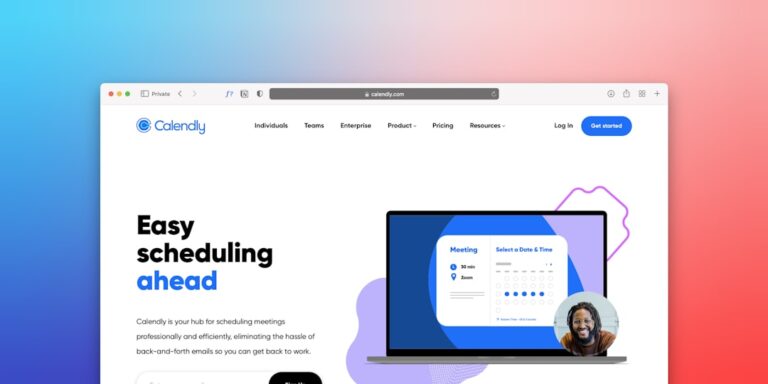
Calendly eliminates this entirely. A single link, the prospect picks a time, the call is confirmed with reminders automatically sent. But the automation value extends beyond the booking itself:
- Post-booking confirmation email includes your intake form, so you arrive at the call already knowing their context
- A 24-hour reminder email is sent automatically (Calendly built-in)
- A Zapier trigger fires on booking, updating your CRM stage and creating a call prep task
- A post-call follow-up email is scheduled to send 2 hours after the meeting end time, thanking them and outlining next steps
The prospect experiences a seamless, professional process. You do nothing manually from the moment they click the booking link to the moment the follow-up lands in their inbox. For the full Calendly automation setup, see Best Calendly Integrations to Automate Your Business.
Pipeline Tool Comparison: Which Setup Fits You
| Setup | CRM Tool | Automation Layer | Monthly Cost | Best For |
|---|---|---|---|---|
| Zero budget | Notion Free | Zapier Free (5 Zaps) | $0 | Under 10 active leads, simple follow-up |
| Lean stack | Notion Plus or Airtable Free | Zapier Starter + Calendly Free | ~$26 | 10–30 active leads, needs booking automation |
| Full pipeline | Airtable Plus or Notion Plus | Zapier Professional + Calendly Standard | ~$65 | 30+ leads, multi-step automation, full onboarding triggers |
| Power user | Airtable Plus + ClickUp | Make Core + Calendly Standard | ~$55 | Complex conditional flows, multiple service types |
The Follow-Up System That Actually Works
Most solopreneurs fail at follow-up not because they’re lazy but because it requires remembering. The automation fixes the memory problem — but the message still has to be worth reading.
A few principles for automated follow-up that converts:
- Keep it short. A 3-sentence follow-up email performs better than a 3-paragraph one. The prospect knows what you do. You’re not re-pitching — you’re just staying visible.
- Reference something specific. Use merge fields in your follow-up emails to include the prospect’s name, the project they mentioned, or the date of your last conversation. Generic follow-ups get deleted; specific ones get responses.
- Give them an easy out. “If the timing isn’t right, just let me know and I’ll check back in a few months” consistently generates more responses — including yeses — than following up without it. People respond to low-pressure.
- Space them correctly. Day 3, Day 7, Day 14. After three automated touches with no response, flag the lead for a personal check-in or move them to a long-term nurture sequence. Don’t automate more than three follow-ups without a human decision point.
- A simple Notion or Airtable database with a Stage field is all the CRM infrastructure a solopreneur needs — enterprise CRM software creates complexity without proportional value at this scale
- The five highest-ROI pipeline automations are: new lead capture, Calendly booking → stage update, proposal follow-up timer, Closed Won → onboarding trigger, and Closed Lost → 90-day re-engagement
- Calendly removes scheduling friction and serves as a trigger point for your entire discovery-to-pipeline automation chain
- Build automations sequentially, one at a time, verifying each works before adding the next — complex systems built all at once are fragile and hard to debug
- Every automated follow-up sequence needs a manual off-switch triggered by CRM stage changes — sending a follow-up to someone who already said no is worse than no automation at all
Frequently Asked Questions
Do I need a dedicated CRM tool or can I use a spreadsheet?
A well-structured spreadsheet works at very low volume — under 10 active leads and one or two deals a month. Beyond that, spreadsheets break down because they don’t connect to automation tools cleanly, they have no built-in views for pipeline stages, and they’re easy to accidentally edit. Notion and Airtable both have free tiers that outperform any spreadsheet for pipeline tracking, and both integrate natively with Zapier. The upgrade from spreadsheet to either tool takes a few hours and pays back immediately.
How do I handle leads that come from different sources in one pipeline?
Add a “Source” field to your CRM database — Website Form, Referral, LinkedIn, Cold Outreach, Inbound Email. This lets you filter your pipeline by source to see where your best leads come from, and it enables source-specific automation sequences. A referral lead might get a different follow-up email than a cold inbound lead. The source field is what makes personalized automation at scale possible.
What’s the best way to track proposal status without a proposal tool?
If you’re sending proposals as PDFs or Google Docs, you lose visibility on whether they’ve been opened. The simplest fix is adding a “Proposal Sent Date” field to your CRM and relying on time-based follow-up rather than open-tracking. A more powerful fix is moving to a dedicated proposal tool — PandaDoc, HoneyBook, or Proposify — which fire webhooks when proposals are opened and signed, enabling much more precise automation triggers. For the full workflow, see Automate Your Proposal-to-Payment Workflow in 2026.
How many leads should be in a solopreneur’s active pipeline at any time?
There’s no universal number — it depends on your close rate and project capacity. A useful rule of thumb: keep enough active leads in your pipeline to fill your next 60 days of available capacity at your average close rate. If you close 1 in 4 proposals and have capacity for 2 new projects per month, you want roughly 16 active leads in various stages at all times. If your pipeline regularly falls below that number, your lead generation needs attention before your automation system does. See How to Automate Lead Capture and Follow-Up (Solo) for building the top of your funnel.
Can I run this whole system from my phone?
Mostly yes. Notion, Airtable, ClickUp, Calendly, and Zapier all have mobile apps. For a solopreneur on the go, the most common phone-based pipeline tasks — checking where leads stand, updating a stage after a call, reviewing your follow-up queue — all work smoothly on mobile. Building and configuring automations is better done on a desktop, but day-to-day pipeline management is fully mobile-functional once the system is set up.
Related Reading
- How to Automate Content Creation for Small Business via BizRunBook
- Pipedrive vs HubSpot CRM for Small Sales Teams 2026 via SaaSSleuth