How to Automate Client Reporting for Freelancers 2026
Disclosure: We may earn a commission when you purchase through links on this site, at no extra cost to you. How we make money.
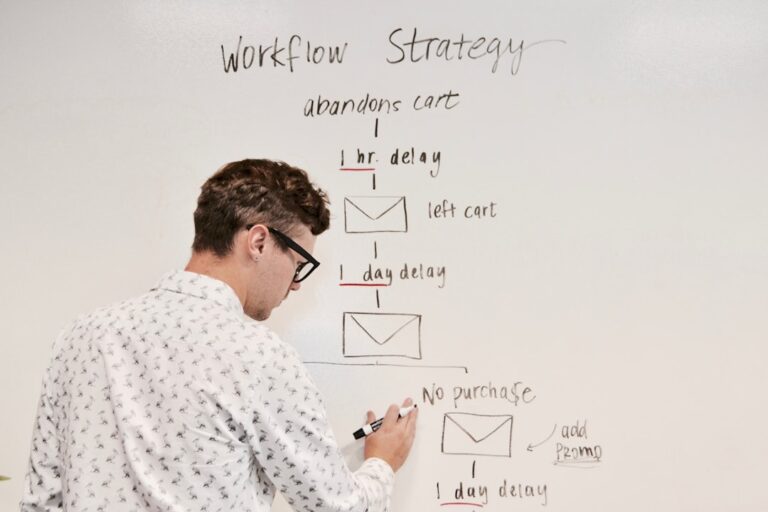
If you’re still spending Sunday evenings copy-pasting task updates into a Google Doc, formatting them into something presentable, and firing off individual emails to each client — you’re doing it the hard way. Client reporting is one of the most universally dreaded admin tasks for freelancers, and it’s also one of the easiest to automate completely. The right workflow pulls your project data automatically, formats it into a clean summary, and delivers it to every client on schedule. You never touch it again.
This guide walks you through exactly how to build that system in 2026, using tools you likely already pay for.
Why Automating Client Reports Is a Leverage Move
Most freelancers think of reporting as a necessary evil — something you do to keep clients happy and justify your retainer. But beyond client satisfaction, automated reporting does something more valuable: it makes your work visible without requiring you to narrate it manually every week.
Clients who receive consistent, structured updates are less likely to send mid-week “just checking in” messages. They feel informed. They trust the engagement. And because the report arrives automatically regardless of how busy your week was, the communication cadence never slips.
The math is straightforward. If you have six clients and spend 30 minutes per report, that’s three hours a week — over 150 hours a year — spent on admin that could be automated in an afternoon.
What You Need Before You Start
Automated client reporting requires three components working together:
- A project management tool where your actual work data lives — tasks completed, milestones hit, hours logged
- A workflow automation platform that connects your tools and triggers report generation on a schedule
- A delivery method — usually email, Slack, or a shared client portal
You don’t need to buy anything new for this. If you’re already using ClickUp, Notion, or Airtable to manage projects, you’re already halfway there.
Choosing Your Automation Platform: Zapier vs Make
The two dominant platforms for this kind of workflow are Zapier and Make (formerly Integromat). They’re both capable, but they suit different working styles.
| Feature | Zapier | Make |
|---|---|---|
| Ease of setup | Very beginner-friendly | Steeper learning curve |
| Visual workflow builder | Linear (step by step) | Visual canvas (nodes) |
| Free tier | 100 tasks/month | 1,000 operations/month |
| Multi-step logic | Paid plans only | Available on free tier |
| Best for | Quick, simple report triggers | Complex multi-client workflows |
| Native app integrations | 6,000+ | 1,500+ |
**Recommendation:** If you have three or fewer clients and want something running in under an hour, start with Zapier. If you’re managing five or more clients with different reporting needs or want more logic control, Make’s visual canvas gives you more flexibility. For a deeper comparison, see our full Zapier vs Make breakdown for small business automation.
Workflow 1: Automated Weekly Report via Zapier + ClickUp + Gmail
This is the simplest and most reliable setup for freelancers who manage projects in ClickUp and want to send weekly email summaries.
What it does
Every Friday at 4 PM, Zapier pulls all tasks marked “Completed” in ClickUp during that week, formats them into a plain-text email summary, and sends it to the relevant client automatically.
Step-by-step setup
- Create your Zap — In Zapier, choose “Schedule by Zapier” as your trigger and set it to fire every Friday at 4 PM.
- Add a ClickUp action — Select “Find Tasks” and filter by status = “Complete” and date completed = this week. Tag tasks by client using a custom field so the Zap knows which tasks belong to which client.
- Add a Formatter step — Use Zapier’s built-in Formatter to compile the task list into a clean bulleted text block.
- Send via Gmail — Use the Gmail action to send the formatted summary to your client’s email. Customize the subject line: “Your Weekly Update — [Week of X].”
- Test and activate — Run the Zap manually first to verify the output before scheduling it live.
For more ClickUp automation ideas that work alongside this workflow, the best ClickUp automations for freelancers guide covers a dozen more time-saving setups.
Workflow 2: Multi-Client Report System via Make + Airtable + Gmail
If you track project status in Airtable and need more flexible, multi-step report logic — this Make scenario handles it with more precision than Zapier allows on its free tier.
What it does
Make runs a scenario on a weekly schedule that queries your Airtable client database, filters records by client, pulls this week’s completed tasks and time entries, builds a formatted HTML email body, and sends individual reports to each client.
Step-by-step setup
- Set up your Airtable base — You need two tables: a Clients table (with name, email, and report day fields) and a Tasks table (with client reference, task name, status, completion date, and hours fields).
- Create a Make scenario — Use the “Schedule” trigger set to run weekly on your preferred day.
- Add an Airtable “Search Records” module — Filter Tasks by status = “Done” and completion date = within the last 7 days.
- Add an Iterator module — This loops through each unique client in the results so Make processes one client at a time.
- Add a Text Aggregator — Combines all tasks for the current client into a single formatted block.
- Send via Gmail or SMTP — Pass the aggregated task list into an email body template and send to the client’s email pulled from your Clients table.
This is more setup than the Zapier version, but it’s more powerful — especially if your client list grows. For more examples of what Make can do for service businesses, check out our Make.com automation examples guide.
Workflow 3: Notion Dashboard + Automated Client Portal Update
If your clients are tech-comfortable and you want to give them a live portal rather than an email, Notion is a surprisingly elegant solution. Instead of sending a report, you maintain a shared Notion page per client that updates automatically.
How it works
- Each client gets a shared Notion database view filtered to show only their project tasks.
- As you update task statuses in Notion throughout the week, the client’s view updates in real time — no report needed.
- Pair it with a Zapier or Make automation that sends a Friday “your portal has been updated” nudge email with a direct link, so clients actually check it.
This approach works especially well for retainer clients who want ongoing visibility rather than a weekly digest. It also reduces the “can I get an update?” message frequency dramatically.
What to Include in an Automated Client Report
The best automated reports are short, structured, and scannable. Most clients don’t read walls of text — they want to confirm progress is happening at a glance.
A solid weekly report template covers:
- Completed this week — bulleted list of tasks finished, ideally with hours if you track time
- In progress — what’s currently active and its expected completion
- Blockers or decisions needed — anything requiring client input before work can continue
- Planned for next week — two to three upcoming priorities so clients feel continuity
Keep the total reading time under two minutes. If clients have to work to read your report, they won’t.
Adding Time Tracking to Your Reports
If you bill hourly or want to show value on retainer engagements, adding time data to automated reports makes a significant difference. Tools like Toggl Track and Harvest both integrate with Zapier and Make, letting you pull weekly hour totals per project automatically.
A simple addition to your Zapier or Make workflow — a “Get Time Entries” step filtered by client and date range — adds a “Hours this week: X” line to every report without any manual counting.
Scaling the System as You Add Clients
The workflows above work for two to three clients. As you grow, you’ll want to make the system more scalable:
- Use a client database as your source of truth — Airtable or Notion with one row per client, including their email, project folder ID, and report day preference.
- Build one master workflow with client-level iteration — Make’s Iterator module handles this natively. Zapier requires a Table or Looping add-on on paid plans.
- Standardize your project structure — Every client project should use the same folder structure, status labels, and task conventions so your automation has consistent data to pull from.
The upfront standardization is worth it. Once the system runs for ten clients as easily as for two, you’ve built real leverage.
- Automating client reports requires three components: a project management tool, a workflow automation platform (Zapier or Make), and a delivery method like email or a shared portal.
- Zapier + ClickUp + Gmail is the fastest setup for freelancers with a small client roster; Make + Airtable handles more complex, multi-client logic.
- Notion shared database views work well as live client portals, reducing the need for weekly email reports entirely.
- Keep automated reports short and scannable — completed tasks, in-progress work, blockers, and next week’s plan in under two minutes of reading time.
- Standardizing your project folder structure across all clients is what makes the system scale from three clients to ten without extra configuration.
Frequently Asked Questions
Can I automate client reporting without coding?
Yes — completely. Zapier and Make are both no-code platforms with visual interfaces. The workflows in this guide require no programming knowledge. If you can set up a filter in a spreadsheet, you can build these automations. If you’re new to no-code automation, our guide on how to automate your small business without coding covers the foundations.
How long does it take to set up automated client reporting?
Expect two to three hours for your first client, then 20 to 30 minutes per additional client once the template exists. The biggest time investment is standardizing your project data structure — once that’s done, cloning the workflow for a new client is fast.
What if different clients want different report formats?
Build a template variable system in your automation. In Zapier, use custom fields in your client database (stored in Airtable or a Google Sheet) to control report format, tone, and delivery day per client. Make’s scenario logic can branch based on client-level settings. This gives you per-client customization without manual work each week.
Can I automate reports for clients who don’t use the same tools I do?
Yes. The client never needs to touch your project management tools. Your automation pulls data from your tools (ClickUp, Airtable, Notion) and delivers it to your client via email or a shared link. The client sees the output — a formatted report or portal page — not the internal machinery.
What’s the best tool combination for a solo freelancer just starting out?
Start with Notion for project tracking, Zapier for automation, and Gmail for delivery. All three have free tiers that support this workflow at low client volume. As you scale past five clients, migrate your project data to Airtable and switch to Make for more flexible multi-client logic. The best Zapier automations for solopreneurs guide has additional workflow ideas that complement this setup.
Related Reading
- How to Automate Content Creation for Small Business via BizRunBook
- Freshworks CRM vs Pipedrive: Small Teams Guide 2026 via SaaSSleuth