Airtable Automations for Small Business: Full Guide
Disclosure: We may earn a commission when you purchase through links on this site, at no extra cost to you. How we make money.
Most people who use Airtable are using it as a very nice spreadsheet. They’ve got a client tracker, a project database, maybe an inventory table — and every time something changes in that data, they manually update another field, send an email, or add a task somewhere else. That gap between the data living in Airtable and the work that happens around it is exactly where Airtable’s Automations engine fits. It’s been there for years, it’s included on every plan including free, and the majority of small business users have never opened the tab. This guide changes that — with specific automations you can build today for the workflows that are probably already costing you time.
What Are Airtable Automations and How Do They Work?
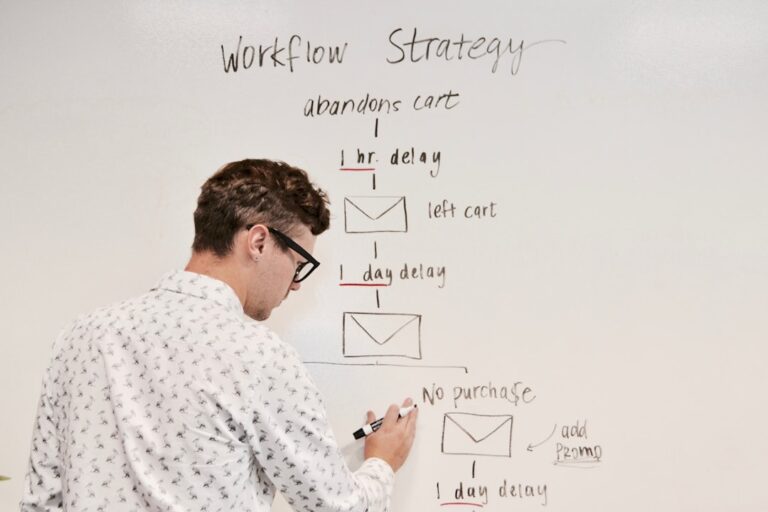
Airtable Automations run on a trigger → action logic, similar to what you’d find in Zapier or Make.com — but built directly into your Airtable base with no external account required. When a specified event happens (the trigger), Airtable executes one or more responses (actions) automatically.
Every automation has three components:
- Trigger — the event that starts the automation
- Conditions (optional) — filters that must be true for the automation to run
- Actions — what Airtable does when triggered
Available Triggers
- When a record is created
- When a record matches certain conditions
- When a record enters a view
- When a form is submitted
- When a record is updated (specific field changes)
- At a scheduled time (daily, weekly, monthly)
- When a button is clicked (manual trigger)
- Webhook — when an external service sends a signal
Available Actions
- Create or update a record (in any base you have access to)
- Find records matching conditions
- Send an email
- Send a Slack message
- Run a script (custom JavaScript on Pro+ plans)
- Trigger a webhook to an external service
- Create a page in Notion (via integration)
- Post to Microsoft Teams
- Google Workspace actions (create Doc, send Gmail, create Calendar event)
How to Set Up Your First Airtable Automation
- Open any Airtable base and click the Automations button in the top toolbar
- Click + New automation (or choose from a suggested template)
- Click Choose a trigger and select your trigger type
- Configure the trigger — for example, select which table and which field change activates it
- Click + Add action and choose what happens next
- Use dynamic values from the trigger record by clicking the + icon to insert field values into your action (e.g., inserting a client name into an email subject)
- Click Test action to confirm it works correctly on a real record
- Toggle the automation On
8 Airtable Automations Every Small Business Should Build
1. Auto-Send a Welcome Email When a Form Is Submitted
If you use Airtable Forms for client intake, lead capture, or service requests, this is the most immediate win available. The moment someone submits your form, they get a professional, personalized response — not silence.
Trigger: When a form is submitted
Action: Send email — to the Email field from the form, with the contact’s Name dynamically inserted in the body
You can personalize the subject line, include a next-steps overview, and link to your calendar. No Zapier required, no separate email marketing tool — it’s all inside Airtable.
2. Notify Your Team in Slack When a High-Priority Record Is Created
Whether it’s a new urgent support ticket, a high-value lead, or a flagged inventory issue, you don’t want your team discovering it by refreshing a table. Set up a Slack notification that fires the moment it appears.
Trigger: When a record matches conditions — e.g., “Priority” field equals “High”
Action: Send Slack message to your team channel with the record name, priority level, and assigned person
This keeps Airtable as your system of record while making sure the right people know about important items in real time.
3. Create a Follow-Up Task When a Project Status Changes
When a project moves to “Delivered” or “Awaiting Feedback,” there’s always a next step — send an invoice, follow up with the client, request a testimonial. Automate the task creation so it never falls through the cracks.
Trigger: When a record is updated — “Status” field changes to “Delivered”
Action: Create a new record in your Tasks table with the task name “Follow up with [Client Name]” and a due date set to 2 days out
Pair this with a solid client lifecycle automation workflow and you’ll have the entire engagement — from kickoff to close — running on autopilot.
4. Send a Weekly Summary Email to Yourself Every Monday
Instead of starting Monday by manually scanning your Airtable tables to figure out what’s on your plate, automate a weekly digest.
Trigger: Scheduled — every Monday at 8:00 AM
Action: Find records matching “Status = In Progress AND Due This Week” → Send email summarizing open items
This requires chaining a “Find records” action before the email action — available on paid plans. For free plan users, a simpler version using a filtered view and a button trigger achieves a similar result manually.
5. Auto-Assign New Records to a Team Member Based on a Field Value
If your base has a “Region,” “Service Type,” or “Category” field, you can automatically assign new records to the right person without a manager reviewing every entry.
Trigger: When a record is created
Condition: “Service Type” is “Design”
Action: Update record — set “Assigned To” to [your designer’s name]
Build one automation per assignment rule, or use conditional logic on paid plans to handle multiple cases within a single automation.
6. Log a Google Calendar Event When a Meeting Is Booked
If clients fill out a scheduling form in Airtable (or you log meetings manually), automatically create a Google Calendar event the moment the record appears.
Trigger: When a record is created (in your Meetings table)
Action: Create Google Calendar event — pull meeting title, date, time, and client name from the record fields
This keeps your calendar and your Airtable database in sync without any manual double-entry. If you’re using Calendly for booking, a Zapier or Make.com zap that pushes Calendly bookings into Airtable first creates the same chain — and from there, Airtable’s native Google Calendar action takes over.
7. Send a Payment Reminder Email When an Invoice Is Overdue
Trigger: When a record matches conditions — “Invoice Status” equals “Unpaid” AND “Due Date” is before today
Action: Send email to the client’s email field with their invoice amount and payment instructions
You’ll need to schedule this as a recurring check (daily, at 9 AM) rather than a field-change trigger, since the condition is date-based. On paid plans you can chain a “Find records” action to grab all matching unpaid invoices in a single scheduled run.
8. Duplicate a Template Record for Every New Client
If every new client project requires the same baseline set of tasks or milestones, automate the creation of those records the moment a new client is added.
Trigger: When a record is created (in your Clients table)
Action: Create records in your Tasks table — one action step per standard task, each linked to the new client record
This is the Airtable equivalent of a project template — and it means every new client starts with a complete, consistent task list rather than whatever you happen to remember to add.
Airtable Native Automations vs. External Tools: When to Use Which
Airtable’s built-in automations are powerful for workflows that stay inside your base — but they have real limits when you need to bridge Airtable with a wider tool ecosystem. Here’s how the options compare:
| Scenario | Airtable Native | Zapier / Make.com |
|---|---|---|
| Record created → send email | ✅ Best choice | Unnecessary |
| Record created → Slack notification | ✅ Built-in | More formatting options |
| New Calendly booking → Airtable record | ❌ Needs external trigger | ✅ Use Zapier/Make |
| Airtable record → create invoice in QuickBooks | ❌ Not supported natively | ✅ Use Zapier |
| Scheduled weekly digest email | ✅ Native scheduling | Overkill |
| Multi-app client onboarding sequence | Partial | ✅ Better with Make.com |
| Cross-base record creation | ✅ Supported (paid plans) | Also works |
The pattern that works best for most small businesses: use Airtable’s native automations for everything that starts and ends inside your base. Reach for Zapier or Zapier alternatives like Make.com when Airtable is the destination that needs data pushed into it from external tools, or when you need to push data out to tools Airtable doesn’t natively integrate with.
Airtable Automation Plan Limits: What Each Tier Gives You
Understanding the run limits before building your automation stack matters — hitting the cap mid-month silently breaks your workflows.
- Free plan — 100 automation runs/month, basic triggers and actions, single-step actions only in some cases
- Team plan ($20/user/month) — 25,000 runs/month, multi-step actions, conditional logic, cross-base actions
- Business plan ($45/user/month) — 100,000 runs/month, custom scripts, sync integrations, advanced permissions
For most solopreneurs with 5–10 active automations firing a few times per day, the free plan works. The moment you add scheduled daily automations checking multiple records or high-volume form submissions, count your expected runs before hitting the wall.
Combining Airtable With Your Broader Automation Stack
Airtable automations work best as one layer in a broader system rather than as a standalone solution. The most effective small business setups use Airtable as the central database — the source of truth for clients, projects, tasks, and records — with automations handling the internal workflow logic, and external tools like Zapier handling the bridges to the rest of the stack.
If you’re building out a client management workflow that spans multiple tools, the client onboarding automation guide walks through how to structure a multi-tool sequence with Airtable as the data hub. And if you’re evaluating whether Airtable is the right database for your stack compared to Notion or ClickUp, this breakdown of the best workflow automation tools for solopreneurs covers how each platform’s automation capabilities compare at different price points.
- Airtable’s Automations tab is included on every plan — including free — and handles trigger-action rules entirely inside your base with no external tool required.
- The eight highest-ROI automations for small businesses are: welcome emails on form submission, Slack alerts for high-priority records, follow-up task creation on status changes, weekly digest emails, auto-assignment rules, Google Calendar sync, payment reminders, and template duplication for new clients.
- Airtable counts action steps (not triggers) against your monthly run limit — a two-action automation uses two runs per fire. Plan accordingly on the free tier.
- Use native Airtable automations for internal workflows; use Zapier or Make.com when you need to bridge Airtable with external tools like QuickBooks, Calendly, or email marketing platforms.
- The Team plan ($20/user/month) unlocks multi-step actions, conditional logic, and 25,000 runs/month — worth the upgrade the moment your automations become business-critical and you can’t afford silent failures from hitting the free cap.
Frequently Asked Questions
Are Airtable automations available on the free plan?
Yes — Airtable’s Automations feature is available on the free plan with a cap of 100 automation runs per month. You can build automations with email sending, record creation, Slack notifications, and most basic triggers. Multi-step action chains and cross-base actions require the Team plan or higher.
Can Airtable automations send emails to people outside my organization?
Yes. Airtable’s “Send email” action can send to any email address — including client email addresses pulled dynamically from a field in your record. This makes it ideal for automated client notifications, intake confirmations, and follow-up emails without a separate email marketing tool for transactional messages.
How is Airtable automation different from Zapier?
Airtable’s native automations work entirely within your Airtable base and a limited set of directly integrated apps (Slack, Gmail, Google Calendar, etc.). Zapier connects Airtable to 6,000+ external apps and supports more complex multi-step logic. The practical difference: use Airtable automations for workflows that start and end in Airtable, and Zapier when you need to connect Airtable to tools outside its native integration list — like your CRM, invoicing software, or project management tool.
Can I trigger an Airtable automation from another tool?
Yes, via webhook trigger. On paid plans, Airtable can receive a webhook from any external tool — Calendly, Typeform, Stripe, your own app — and use that as the automation trigger. This effectively turns Airtable into a workflow endpoint that can respond to events happening anywhere in your stack, not just changes within the base itself.
What happens if I hit my monthly automation run limit?
Airtable stops running automations for the remainder of the billing month once you hit your plan’s run limit — and it does so silently. You won’t receive an alert unless you’re actively checking the Automations dashboard. Set a calendar reminder to check your run usage mid-month, or upgrade to a plan with a higher limit before your automations become business-critical enough that missed runs cause real problems.