How to Automate Lead Capture and Follow-Up (Solo)
Disclosure: We may earn a commission when you purchase through links on this site, at no extra cost to you. How we make money.
Solopreneurs don’t lose leads because their service isn’t good enough. They lose leads because a $3,000 inquiry came in at 7pm on a Friday, sat unanswered until Monday morning, and by then the person had already booked someone else. Or because a promising contact made at a networking event got a follow-up email four days later — after the momentum had died. The math is brutal: studies consistently show response time within the first hour dramatically increases conversion rates compared to responding after 24 hours, and most solopreneurs cannot physically monitor every inquiry channel in real time. Automation solves this exactly: it doesn’t make you respond faster because you’re working harder, it makes every lead get an instant response because the system responds for you. Here’s how to build that system without code, without a CRM budget, and without a sales team.
Why Manual Lead Follow-Up Fails Solopreneurs
Before building the automation, it’s worth being precise about where leads fall through the cracks — because the solution needs to address the actual failure points:
- Delayed first response: You’re in a client session, on a call, or simply offline when an inquiry arrives. By the time you see it, the lead has gone cold or found a competitor.
- Inconsistent follow-up sequence: You send one email, don’t hear back, and mentally deprioritize the lead. A structured follow-up would have converted them on day 3. You never sent day 3.
- Leads scattered across channels: Inquiries arrive through your website form, Instagram DMs, a referral email, and a Calendly request all in the same week. Tracking which ones need follow-up and when requires mental overhead you don’t have.
- No central record: Without a single place that shows every lead and their status, things slip. The contact who said “reach out in two weeks” gets forgotten two weeks later.
Automation addresses the first three directly. A central lead database — even a simple one — addresses the fourth.
Building Your Automated Lead Capture System
Step 1 — Create One Entry Point for All Leads
The first design decision is consolidation. If your leads arrive from five different places, you need five different automations — which is manageable, but harder to maintain than five automations that all feed one system. Wherever possible, route inquiries to a single contact form on your website. Use that form as the primary capture mechanism and treat everything else (DMs, referral emails) as secondary sources that you manually add to your lead database when they arrive.
The best contact form tools for this automation stack are Typeform, Tally (free), or a native form on your website builder. All three integrate directly with Zapier and Make, which is the critical requirement. Google Forms also works if you’re already in the Google ecosystem — Zapier and Make both have native Google Forms triggers.
When designing the form, collect everything you need to qualify the lead and personalize the automated response: their name, email, what they’re looking for, their timeline, and optionally their budget range. The more specific the form, the more personalized your automated response can be — “Hi Sarah, sounds like you need help with X by Y date” hits differently than a generic “Thanks for reaching out.”
Step 2 — Connect Your Form to a Lead Database
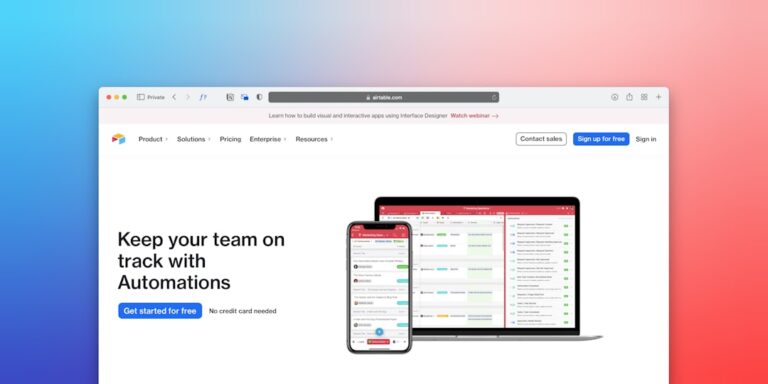
Every form submission should automatically create a record in a lead tracking database. This is where Airtable is the strongest tool for most solopreneurs — it’s a spreadsheet-database hybrid with a clean interface, built-in automations, and direct Zapier/Make integration. Create an Airtable base with fields for: name, email, service interest, timeline, budget, source, status (new/contacted/qualified/closed), and notes. Every time a form submits, Zapier or Make creates a new Airtable record automatically.
Notion is a viable alternative if you’re already using it as your primary workspace — a Notion database works for lead tracking and keeps everything in one tool. The trade-off: Notion’s database views are less flexible than Airtable’s for pipeline management, and its Zapier integration is slightly less mature. If you’re already using Notion heavily, it’s worth it for consolidation; if you’re starting from scratch, Airtable is the cleaner choice for a dedicated lead database.
For a deeper look at how Notion handles CRM-style workflows, the Notion as a CRM for freelancers guide covers the setup in detail — useful context if you’re deciding between the two.
Step 3 — Trigger an Instant Automated Response
The moment a form submits and an Airtable record is created, your automation should send an instant email response. This is the most important step — it addresses the response time problem immediately. The automated email should:
- Acknowledge receipt specifically (reference what they said they need)
- Set a clear expectation for when you’ll personally follow up (e.g., “I’ll be in touch within one business day to discuss your project”)
- Offer a Calendly link for leads who prefer to skip the back-and-forth and book directly
- Include one piece of useful context — a relevant case study, a FAQ page, or a short note about your process
This email serves two purposes: it prevents the lead from assuming no one received their inquiry (the most common reason people move on immediately), and it qualifies fast-movers who want to book right away through your Calendly link. Automating this scheduling step means you’re not manually coordinating meeting times — the automated meeting scheduling guide covers the Calendly setup in full if you haven’t configured this yet.
Building the Follow-Up Automation Sequence
The instant response handles the first contact. The follow-up sequence handles the conversion. Most solopreneurs send one follow-up email; a structured three-touch sequence over five days dramatically outperforms that approach.
Day 0 — Instant Confirmation (Automated)
The acknowledgment email described above. Sent immediately via Zapier or Make when the form submits. Personalized with their name and service interest from the form fields.
Day 2 — Value-Add Touch (Automated)
A second automated email sent 48 hours after the initial inquiry — not another “just following up” message, but a piece of genuinely useful content related to what they said they need. If they inquired about website design, send a short guide on what to prepare before a web design project. If they need bookkeeping help, send a simple checklist of what to have ready for a bookkeeper. This email positions you as an expert before they’ve even spoken to you, and it gives unresponsive leads a reason to re-engage.
Build this in Zapier using a delay step: trigger on Airtable record created → delay 2 days → send email via Gmail or your email tool. Make.com’s scheduler module handles the same logic with more visual clarity.
Day 5 — The Soft Close (Automated, Then Manual)
A final automated email at day 5 for leads who haven’t responded or booked. This email is short and direct: “Still happy to connect — here’s my availability this week [Calendly link]. If timing isn’t right, no worries — feel free to reach out when the time is right.” After this, move the lead to a “nurture” status in Airtable and let them sit until you have reason to follow up manually (a relevant announcement, a service change, a check-in in 30 days).
This three-touch sequence handles the follow-up problem without feeling like spam — each email has a purpose and adds value, and the sequence ends before it becomes annoying.
Zapier vs Make: Which to Use for This Workflow
| Factor | Zapier | Make |
|---|---|---|
| Ease of setup | Easier — linear step-by-step interface | Steeper — visual canvas requires orientation |
| Delay/scheduling | Delay step available on paid plans | Sleep module available on free plan |
| Free plan limits | 100 tasks/month, single-step Zaps only | 1,000 ops/month, multi-step scenarios free |
| Conditional logic | Filter and path steps (paid) | Router module (free) |
| Best for this workflow | Best if you want simplest setup and don’t mind paid plan | Best for full sequence on a budget — free plan covers it |
| Starting price | $19.99/month (Professional) | Free / $9/month (Core) |
For this specific workflow — form submission → database record → email sequence with delays — Make is the better starting point if cost matters, because its free plan supports multi-step scenarios with the sleep module for delays. Zapier’s free plan limits you to single-step Zaps, which means you’d need at least the Starter plan ($19.99/month) to build a sequence with delays. If you’re already paying for Zapier for other automations, build it there for consistency. If you’re starting fresh, Make’s free plan covers this entire workflow. The full comparison is in the Zapier vs Make for small business guide if you need to make a platform decision first.
The Complete Automation — Step by Step in Zapier
For those ready to build: here’s the Zapier workflow structure for the full lead capture and follow-up sequence.
- Trigger: New form submission (Typeform, Tally, or Google Forms)
- Action 1: Create record in Airtable (Lead Tracker base) — map form fields to Airtable columns
- Action 2: Send email via Gmail — instant confirmation email with personalized first name, service interest, and Calendly link
- Action 3: Delay 2 days (requires Zapier Professional or higher)
- Action 4: Send email via Gmail — value-add email with relevant resource
- Action 5: Delay 3 more days (5 days total from initial inquiry)
- Action 6: Send email via Gmail — soft close with Calendly link and graceful exit
- Action 7: Update Airtable record status to “Sequence Complete”
The same logic in Make uses: Typeform/Tally webhook → Airtable Create Record module → Gmail Send Email module → Sleep module (2 days) → Gmail Send Email → Sleep module (3 days) → Gmail Send Email → Airtable Update Record. Make’s visual canvas makes it easier to see the full sequence at a glance once built.
Once a lead converts — they book a call or reply to one of the emails — manually update their Airtable status to “Active” and move them into your client onboarding workflow. If you haven’t automated that side yet, the automated client onboarding guide covers the post-conversion workflow that picks up where this sequence ends.
- The core stack is three tools: a form (Typeform or Tally), a lead database (Airtable or Notion), and an automation platform (Zapier or Make) — connected with Gmail for email delivery and Calendly for booking.
- Make’s free plan covers this entire multi-step workflow including delays; Zapier requires a paid plan for the delay steps — factor this into your platform choice if you’re starting from scratch.
- The three-touch sequence (instant confirmation → day 2 value add → day 5 soft close) converts significantly better than a single follow-up email and runs without any manual involvement once built.
- Consolidate all inquiry sources into one form wherever possible — it simplifies the automation and gives you a single lead database that’s easy to maintain and review.
- Test every automation with a real form submission before relying on it — empty field bugs and delay miscalculations are common and easy to catch early, hard to notice once live.
Frequently Asked Questions
Do I need to pay for Zapier to build this automation?
For the full three-email sequence with delays, yes — Zapier’s free plan is limited to single-step Zaps, and the delay step requires the Professional plan ($19.99/month). If budget is a constraint, Make is the better choice: its free plan (1,000 operations/month) supports multi-step scenarios with the Sleep module, which handles the 2-day and 5-day delays. For a solopreneur with moderate lead volume (under 50 new leads per month), Make’s free plan comfortably covers the full workflow. The choice comes down to whether you’re already paying for Zapier for other automations — if so, build there. If starting fresh, start with Make.
What if my leads come from Instagram DMs or referrals, not a website form?
For DM and referral leads, manual entry into your Airtable lead database is the practical solution. Create a simple Airtable form (different from your website contact form) that you fill out on your phone when a lead comes in through informal channels — it takes 60 seconds and drops the lead into your database with the same fields. From there, the automation picks up: if you have a Zapier automation triggered by a new Airtable record (regardless of source), it will send the same email sequence. The key is making manual entry so fast that you actually do it — a mobile-friendly Airtable form is the lightest-friction option.
What email tool should I use for the automated sequence?
Gmail is the most practical choice for most solopreneurs — it’s already connected to your business email, Zapier and Make both have strong Gmail integrations, and transactional emails from Gmail (your actual email address) have better deliverability and feel more personal than marketing email tools. The limitation is volume: if you’re sending hundreds of automated emails per month, Gmail’s sending limits become a constraint. At typical solopreneur lead volumes (10–50 per month), Gmail handles it without issue. If you grow beyond that, migrate the sequence to a dedicated email tool like ActiveCampaign or ConvertKit, which have proper sequence builders and higher sending limits.
How do I prevent the automated sequence from sending if I’ve already personally responded to the lead?
Add a status check before each delay step. In Airtable, create a “Status” field on your lead record. When you personally respond to a lead, update their status to “Manually Contacted.” In Zapier or Make, add a filter or condition before each email action: only continue if the Airtable status is still “New.” This requires a lookup step (Zapier’s “Find Record in Airtable” action checks the current status at the time the delay expires, not at the time the Zap started). It’s one extra step in the build, but it prevents the awkward scenario of a lead getting your automated Day 2 email hours after you had a phone call with them.
How long does it take to build this automation from scratch?
Two to three hours for a first-time builder — longer if you’re new to Zapier or Make. The breakdown: 30 minutes to set up your Airtable lead database and form, 45 minutes to write your three email templates, 60–90 minutes to build and test the automation steps. The testing phase takes longer than expected because you’ll catch at least one or two bugs (empty fields, wrong email variable, delay miscalculation) that need fixing. Budget a full afternoon your first time. Once built, the maintenance overhead is close to zero — you’ll check it occasionally when you notice something off, but the workflow runs itself.
Related Reading
- How to Automate Content Creation for Small Business via BizRunBook
- Freshworks CRM vs Pipedrive: Small Teams Guide 2026 via SaaSSleuth